Put PC on hold
Temporarily block a device (e.g. for repair, cleaning, or reservation) so it is not available for booking. The PC status becomes "On hold" or similar.
Step 1
Open Hall or Devices. Find the device you want to put on hold.
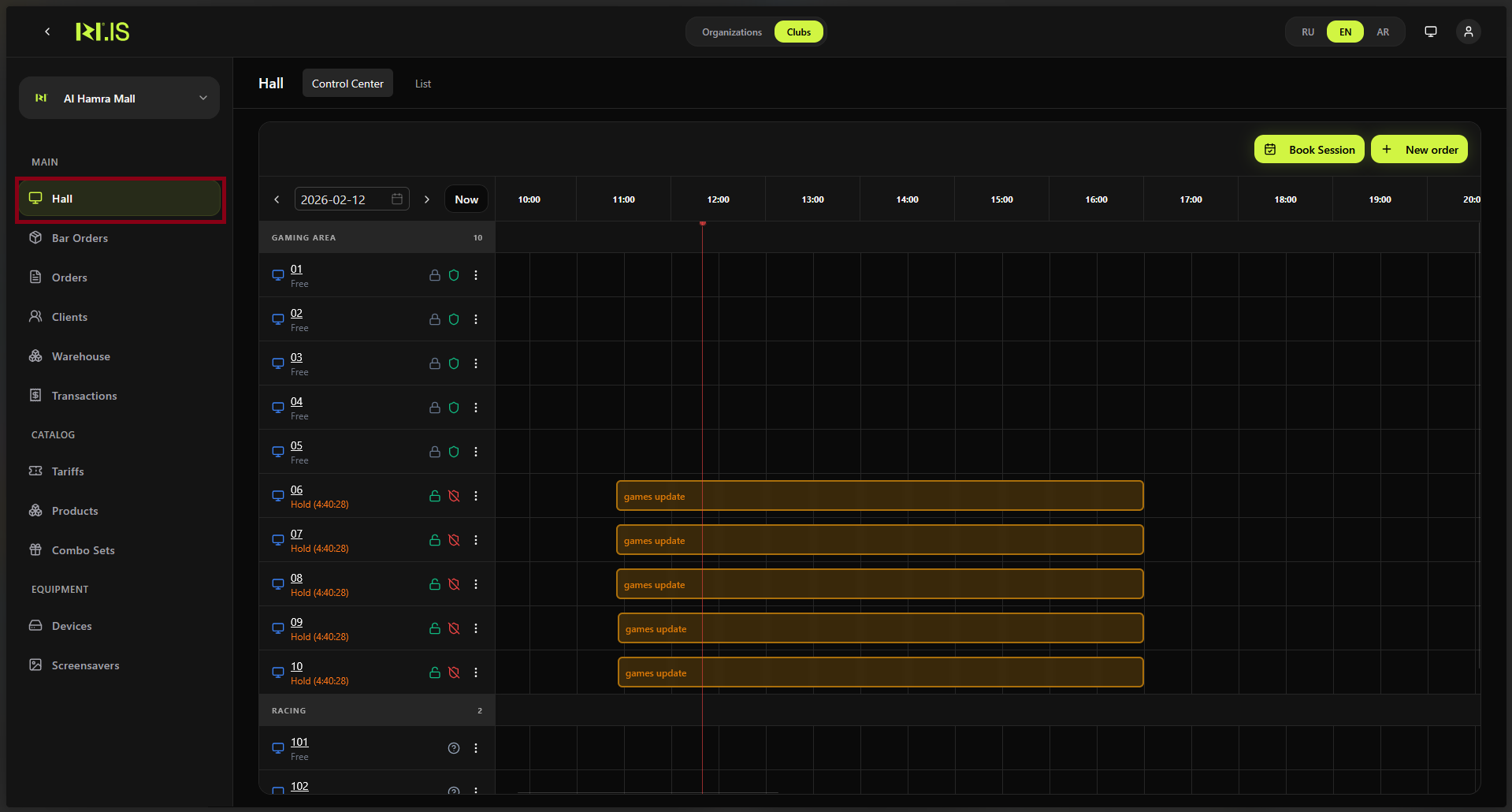
Step 2
Open the device menu (e.g. ellipsis or right-click). Select Put on hold (or "Block", "Maintenance", "Unavailable").
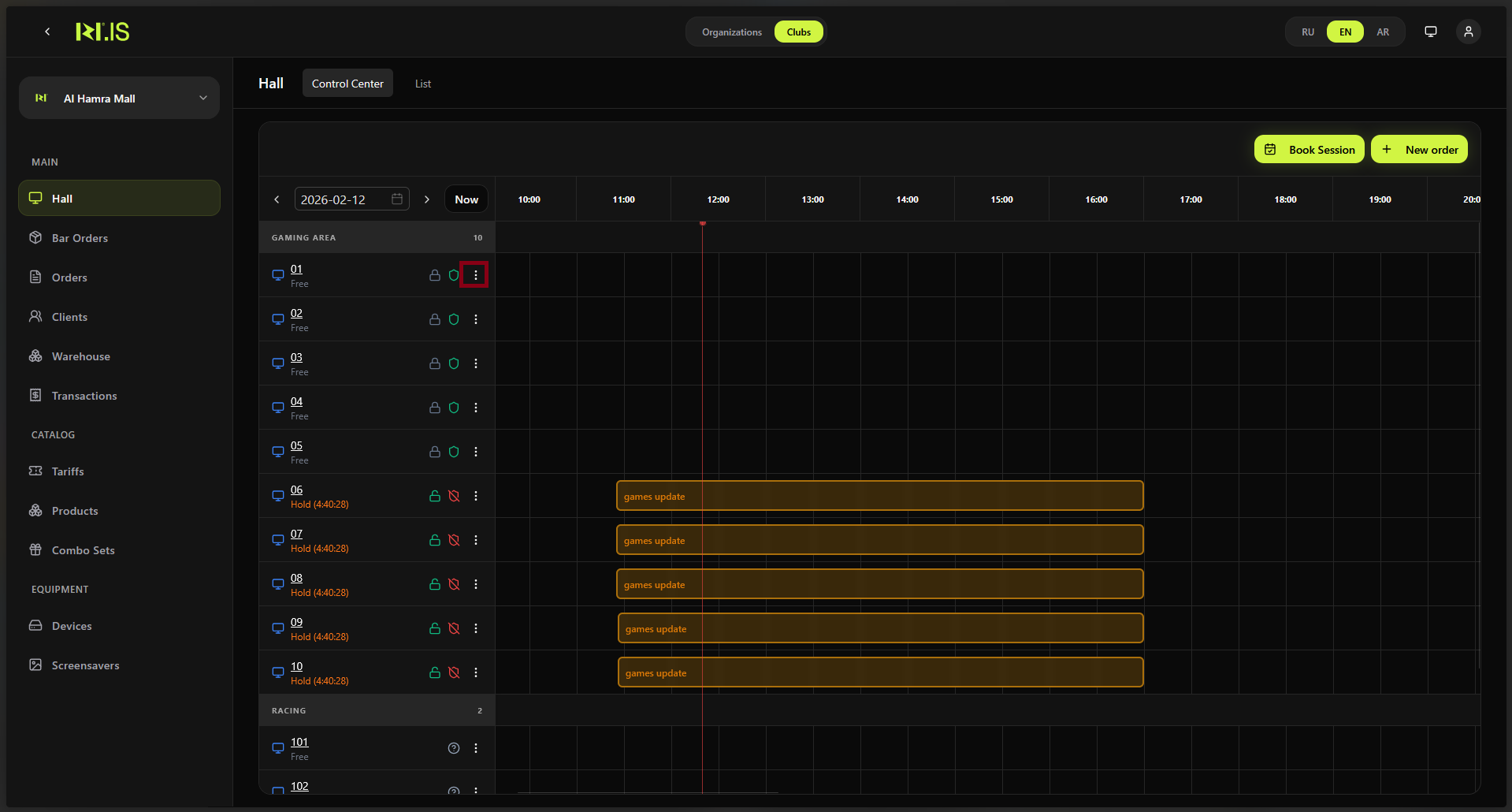
Step 3
If a reason or comment is requested, enter it (e.g. "Repair", "Cleaning"). Confirm.
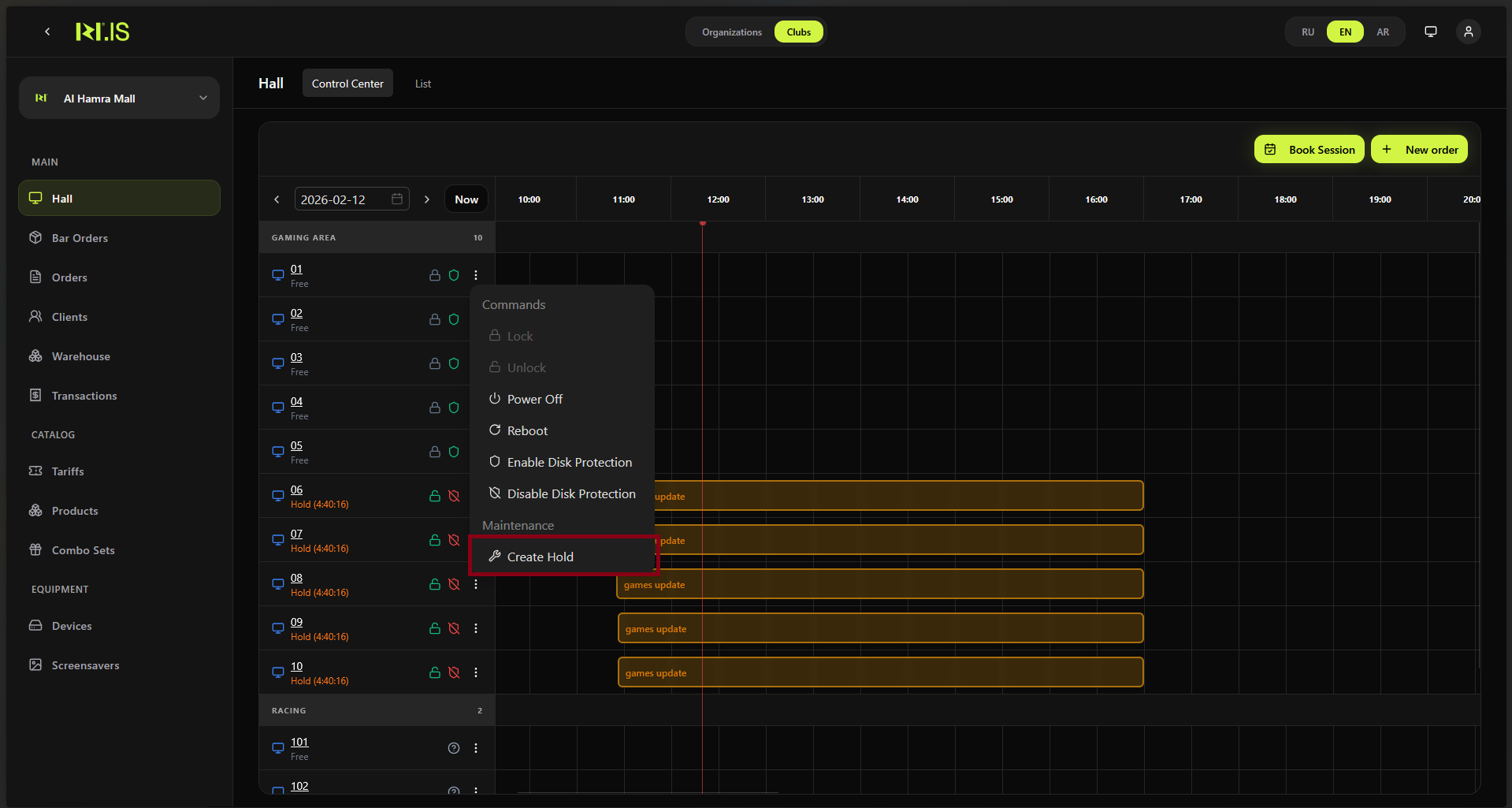
Step 4
The device status changes to On hold. It no longer appears as free for new sessions.
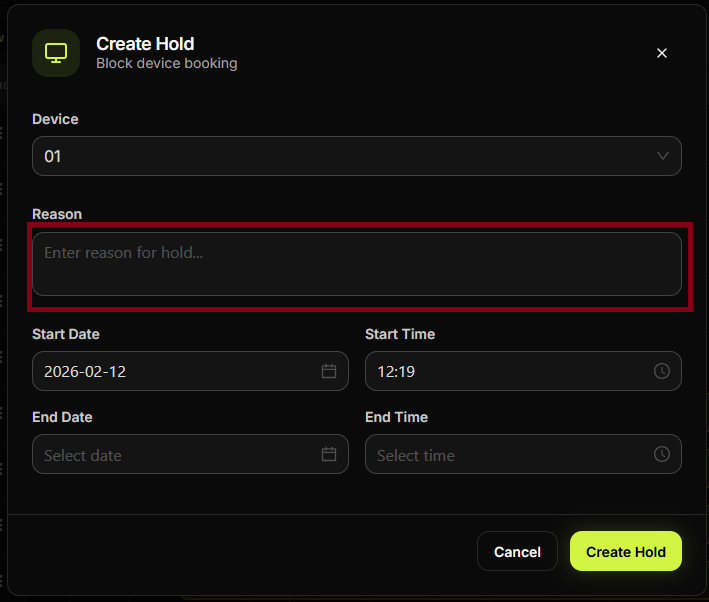
Step 5
You can see the hold status in the Hall or device list.
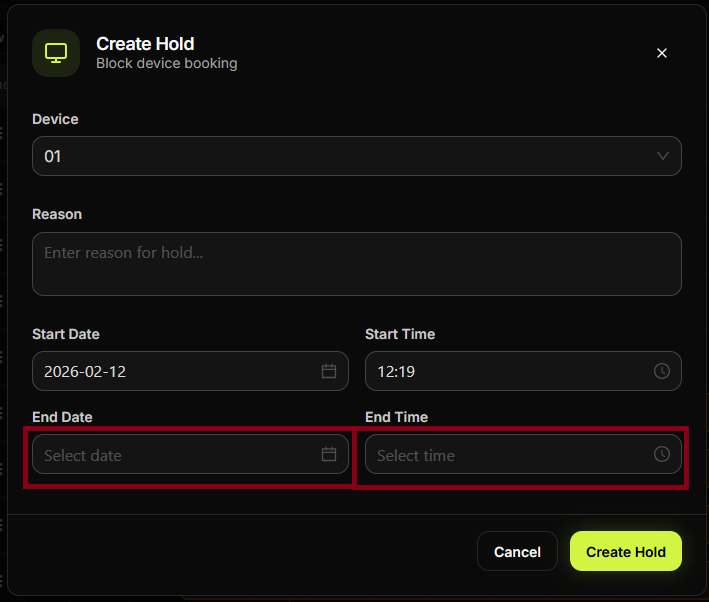
Step 6
To make the PC available again, open the same menu and select Remove from hold (or "Available").
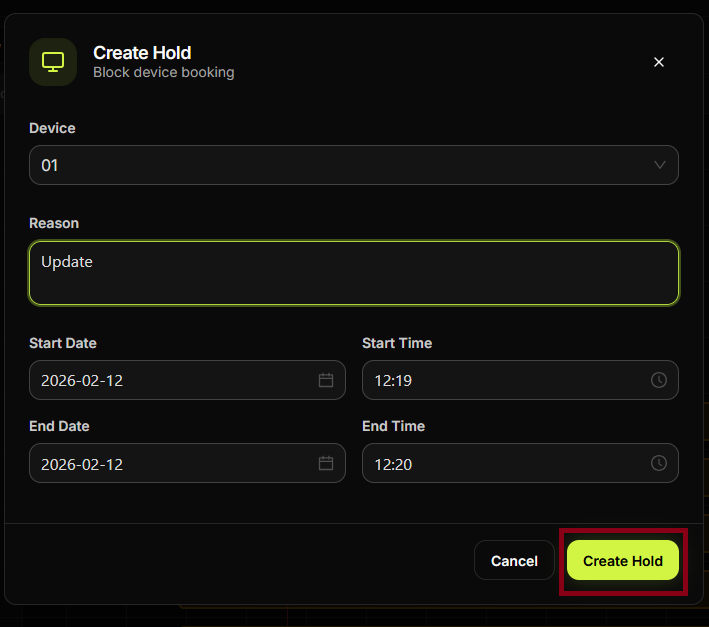
Summary
Hold = temporarily block a PC from bookings. Use when the device is under maintenance or reserved. Remove hold when it is ready for use again.
Common situations
| Active session on device | End the session first, then put the PC on hold, or check if the system allows hold with an active session. |
| Cannot remove hold | Use the device menu again and choose "Remove from hold" or "Available"; refresh the page if needed. |