Refunds
Process a refund for an order or payment: find the original transaction, create a refund, and (if applicable) return funds to the client's balance or record a cash/card refund.
Step 1
Open Orders or Transactions. Find the order or transaction you want to refund.
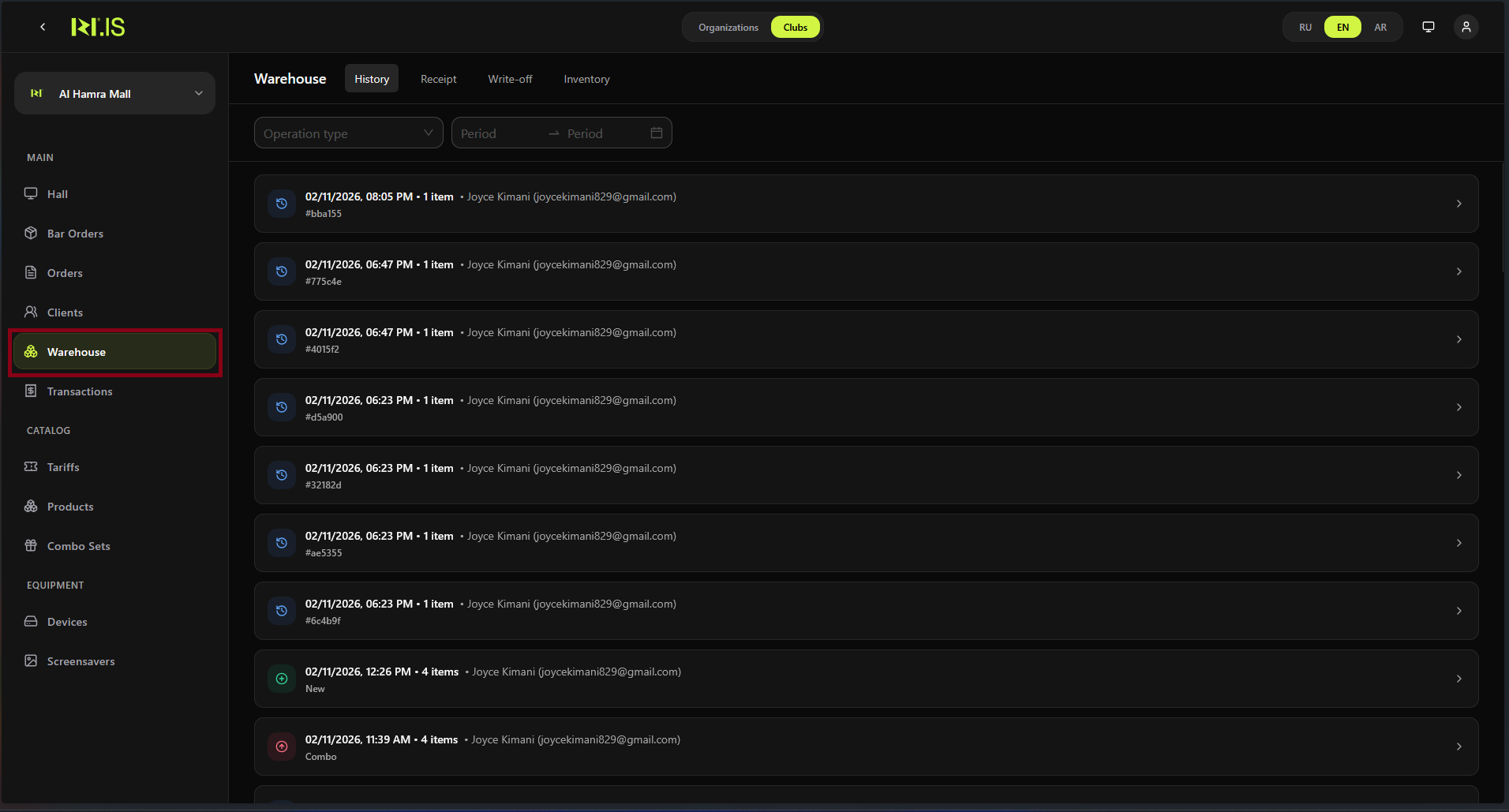
Step 2
Open the order or transaction. Check that it is paid and eligible for refund (e.g. not already refunded).
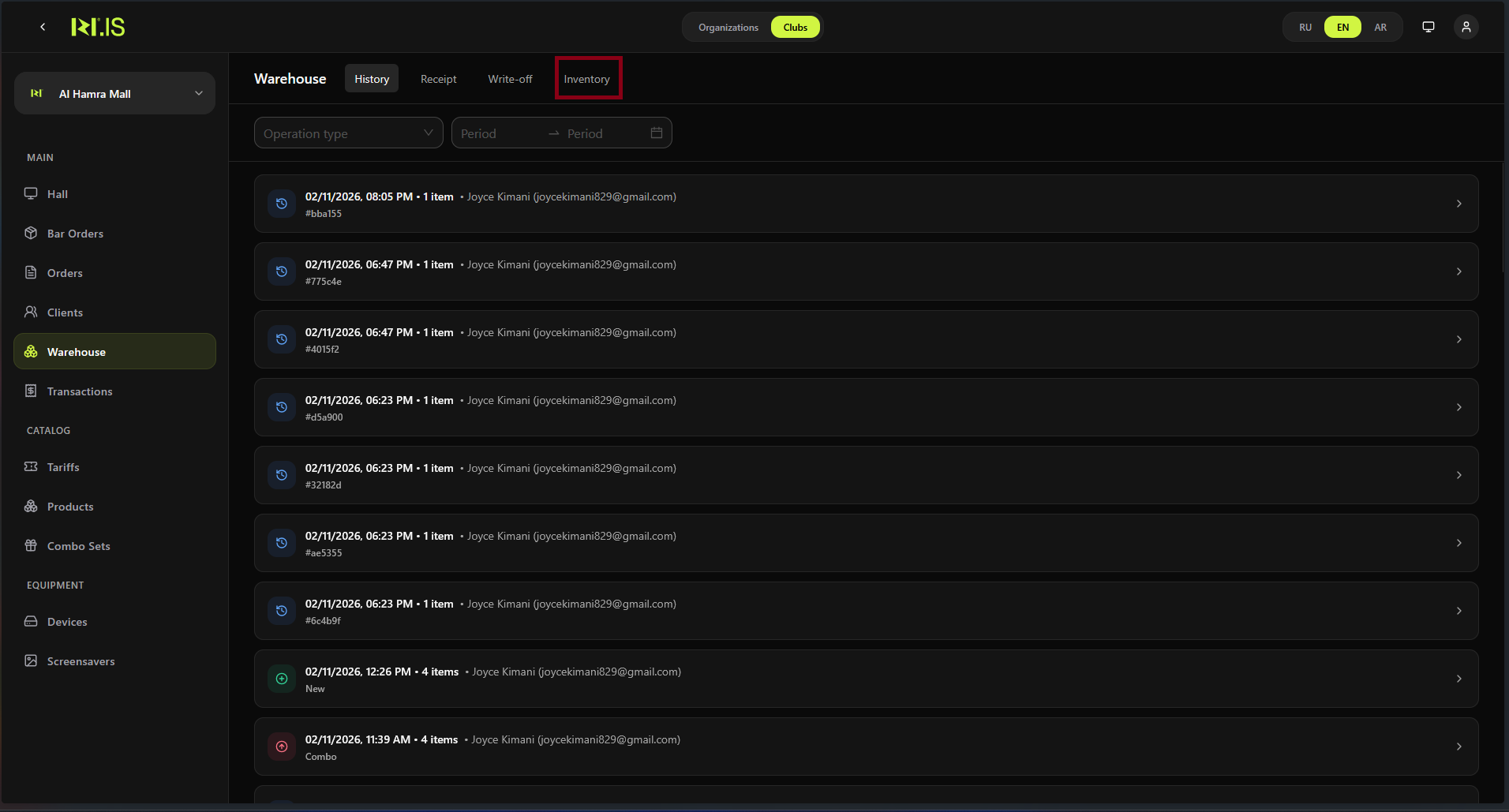
Step 3
Select the refund action (e.g. Refund, "Cancel and refund", "Return"). The refund dialog or wizard opens.
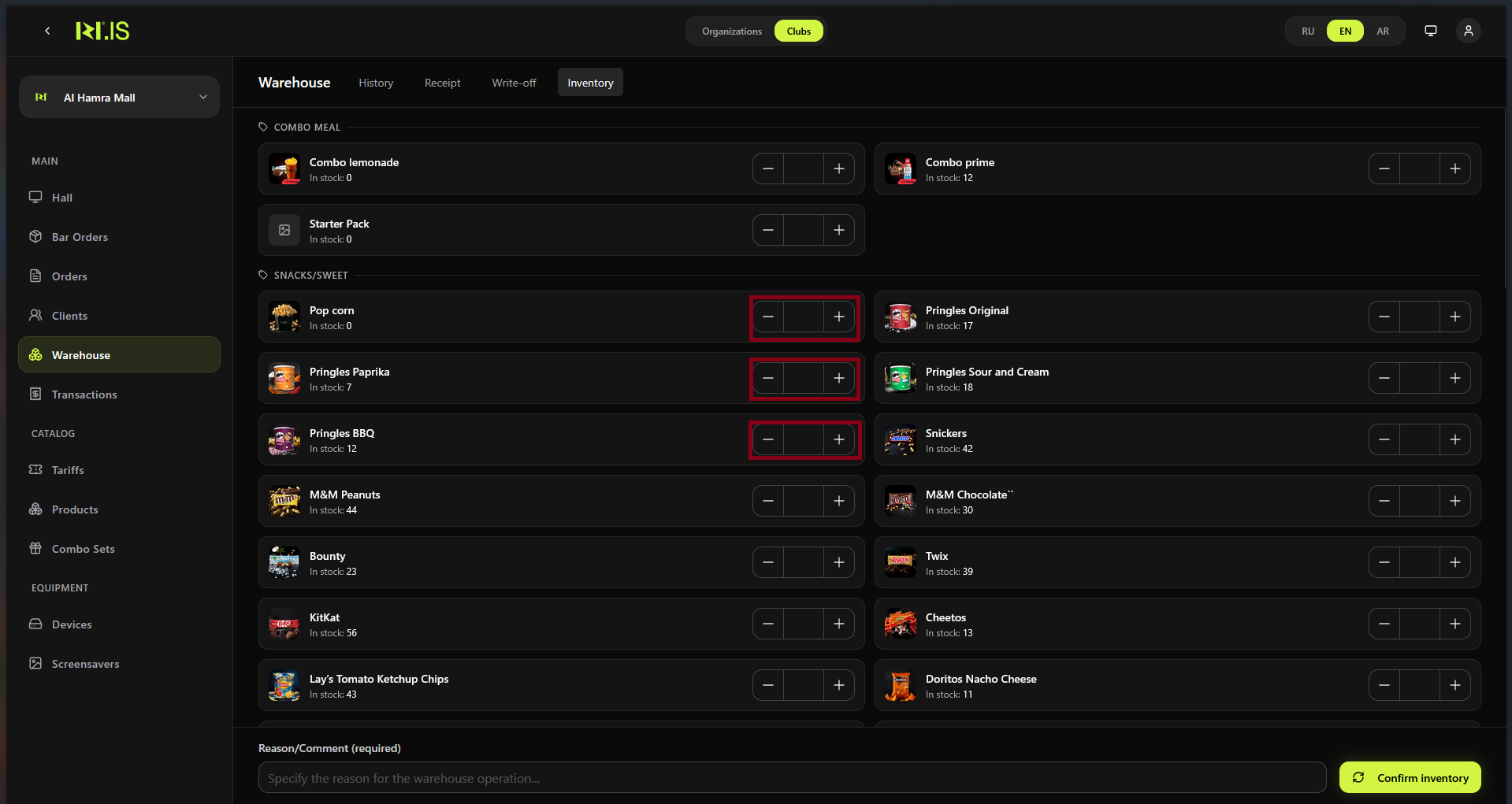
Step 4
Enter the refund amount (full or partial) and the reason. Choose whether to return to balance, card, or cash as per your club's rules.
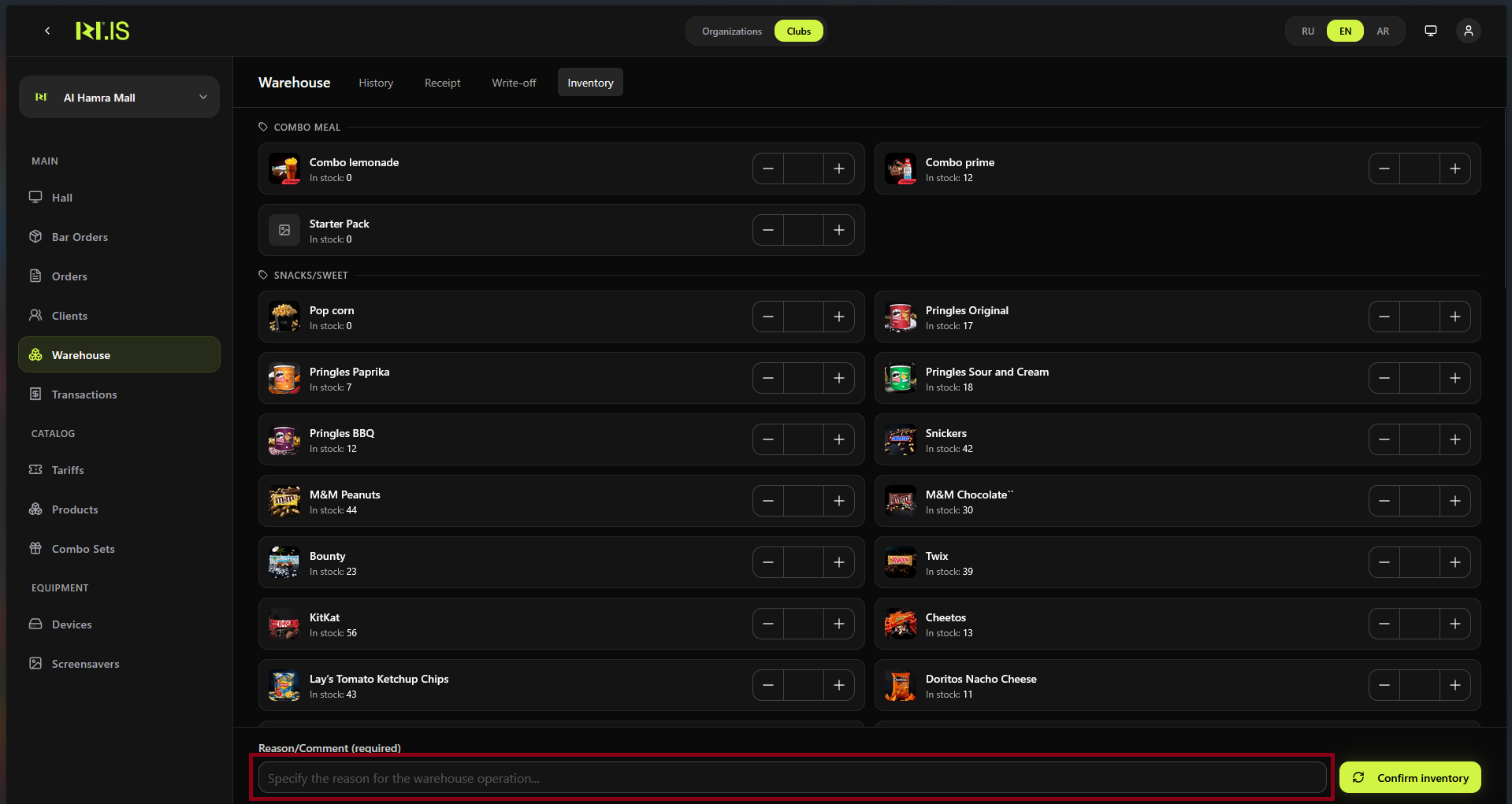
Step 5
Confirm the refund. The system creates a refund transaction and updates the order status. The client's balance may be credited.
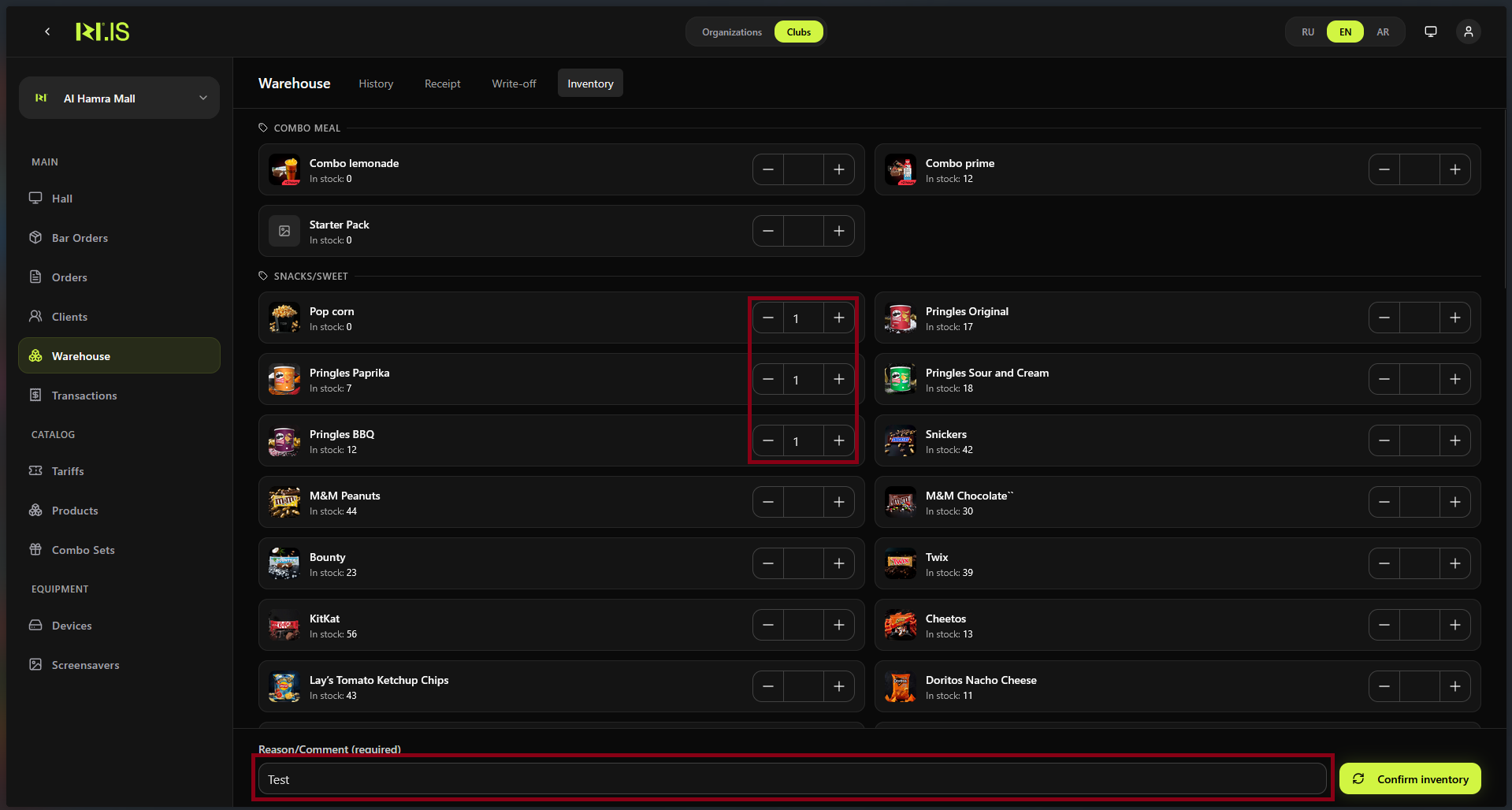
Step 6
The refund appears in Transactions (and possibly in Orders). The original order may show "Refunded" or "Partially refunded".
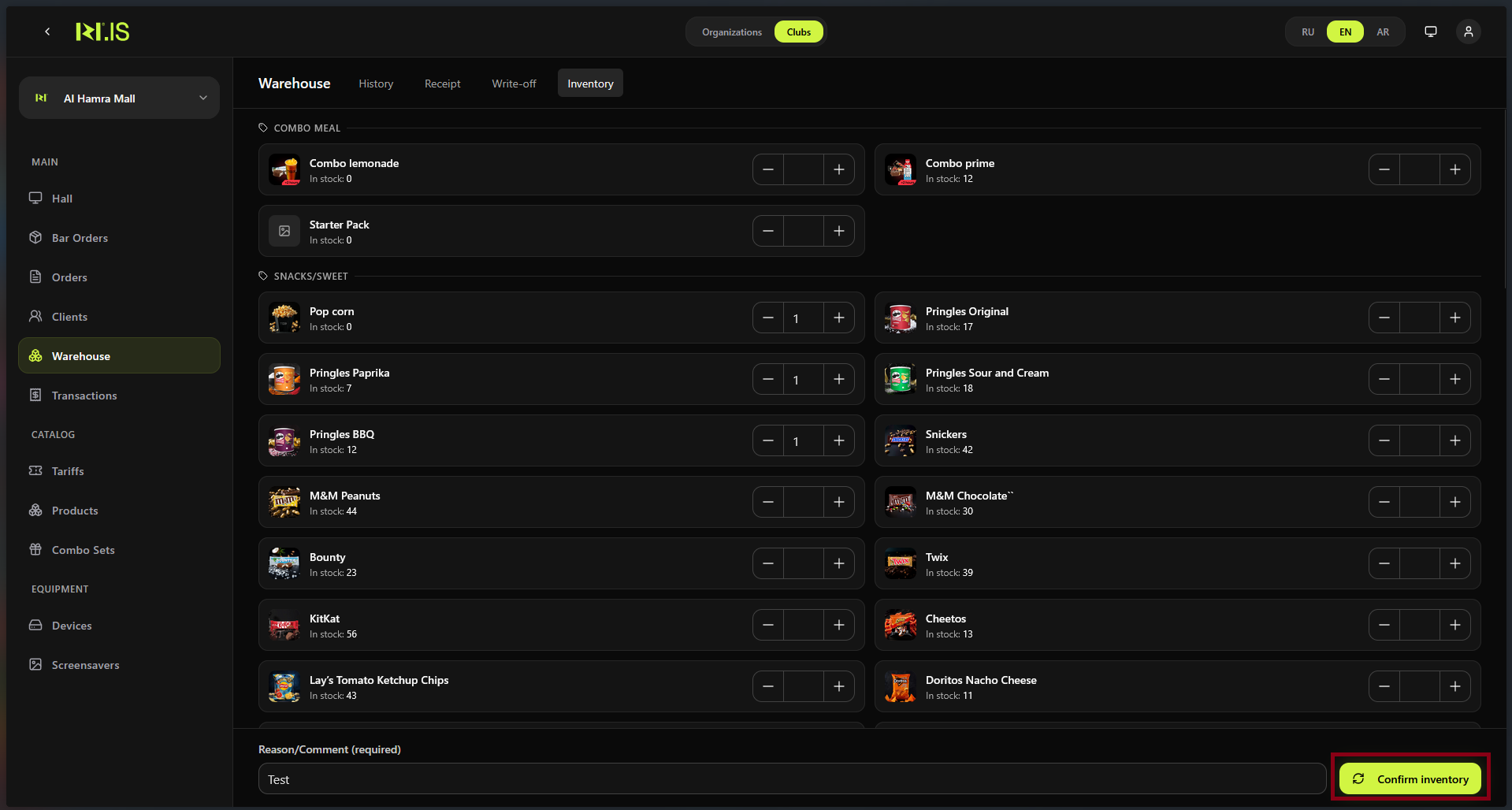
Summary
Refund = reverse a payment (full or partial). Flow: Orders/Transactions → select order → Refund → amount and reason → confirm. Money can go back to balance, card, or cash.
Common situations
| Refund button disabled | Order may already be refunded or not paid; check status and permissions. |
| Partial refund | Enter the amount to refund (less than order total); confirm. Rest may be refunded in a second step if needed. |