Update and install games
Manage game updates and installations on club devices. Use the Devices or equipment section to select a PC and run updates or install new games.
Step 1
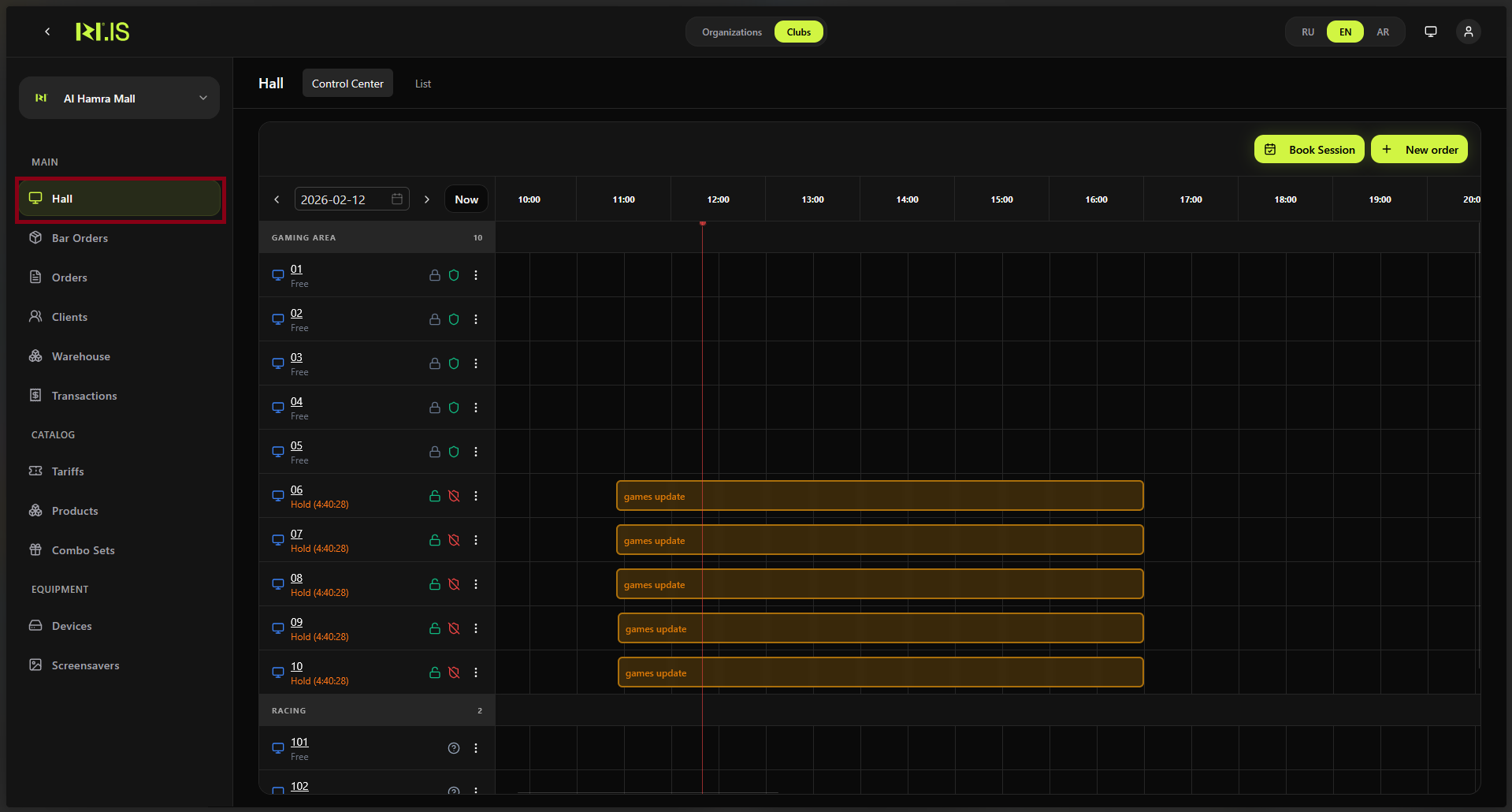
Open Devices (or Equipment) in the left sidebar. The list of devices is displayed.
Step 2
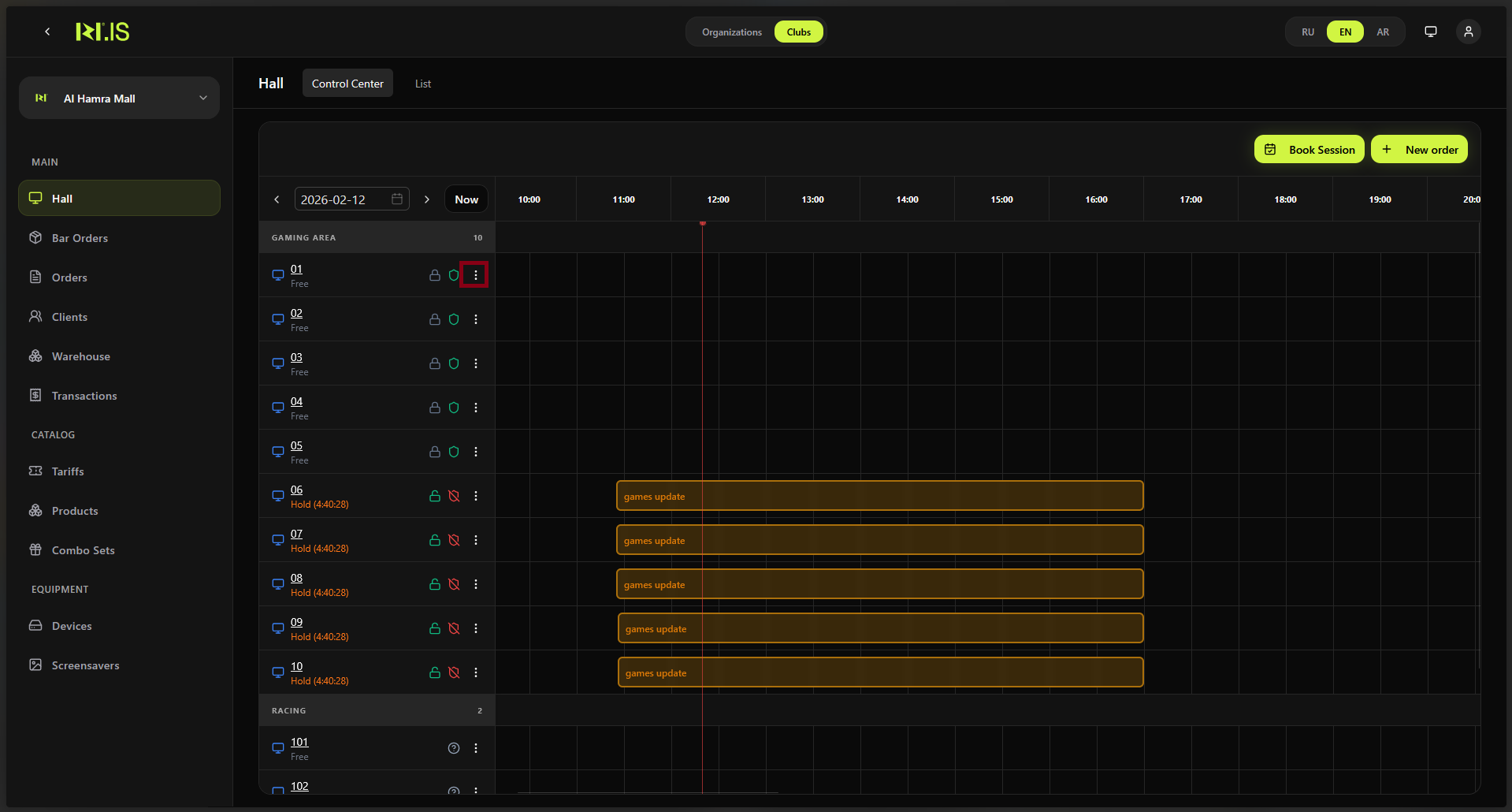
Select the device (PC) you want to update or install games on. Open its card or details.
Step 3
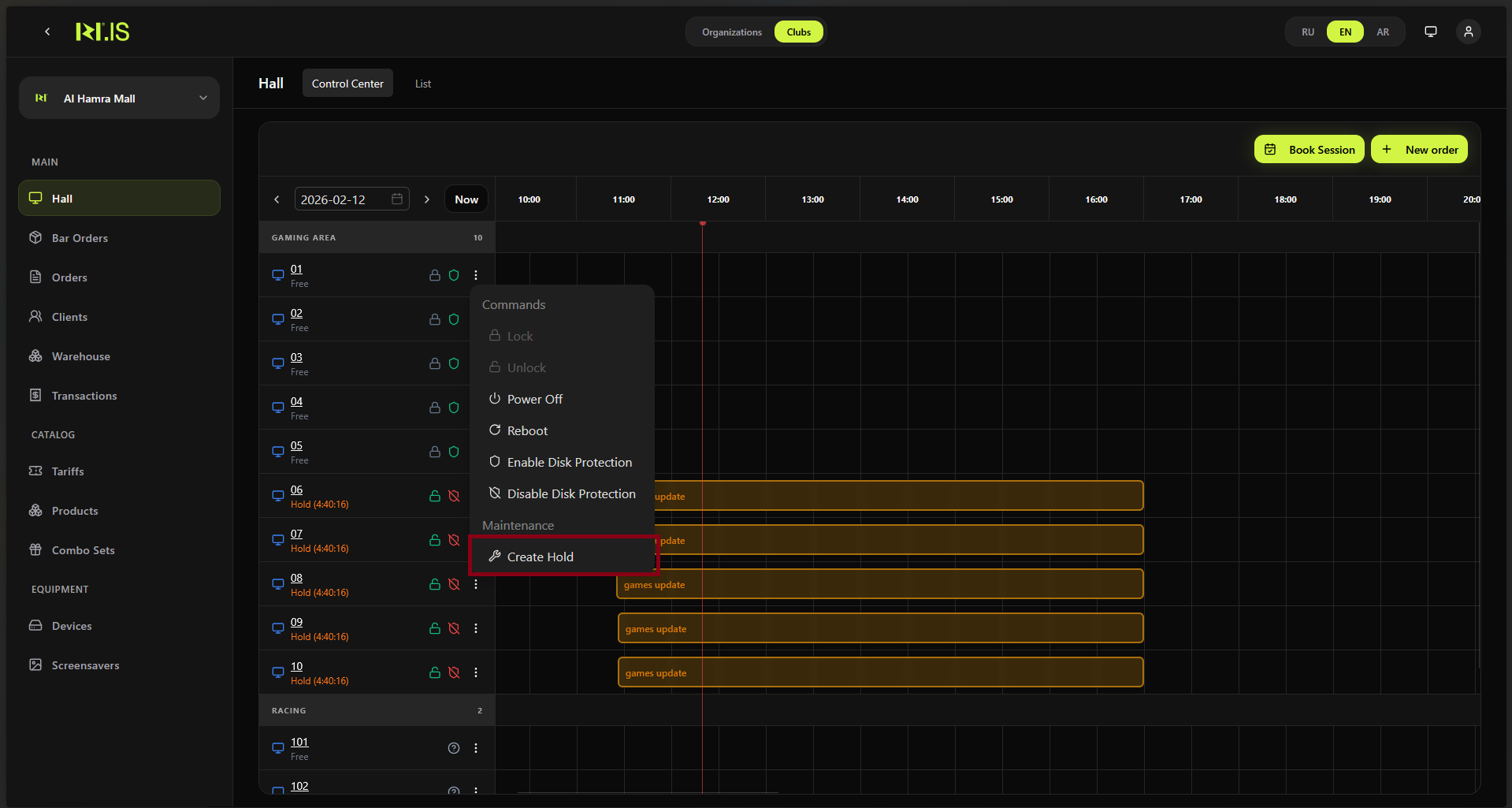
Find the section for games, updates, or software. Open the list of games or the update/install tool.
Step 4
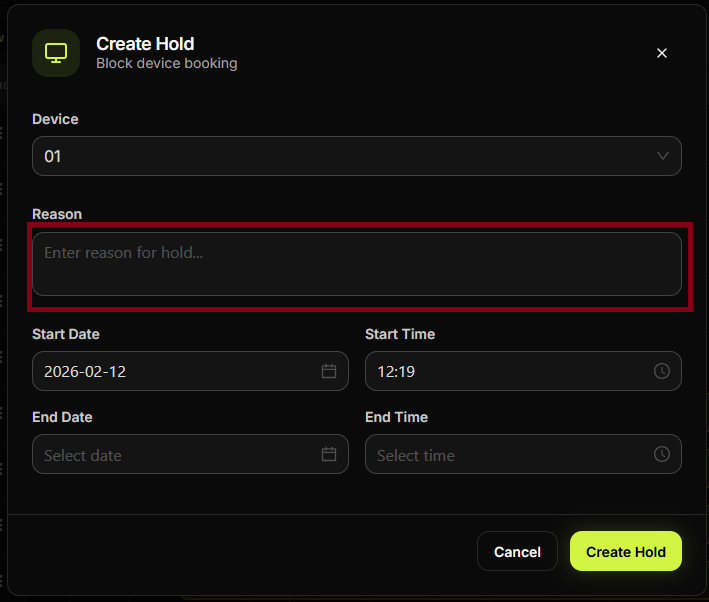
Select the game to update or install. If multiple games are listed, choose one or several.
Step 5
Start the update or installation. Confirm the action. Progress may be shown on the device or in the interface.
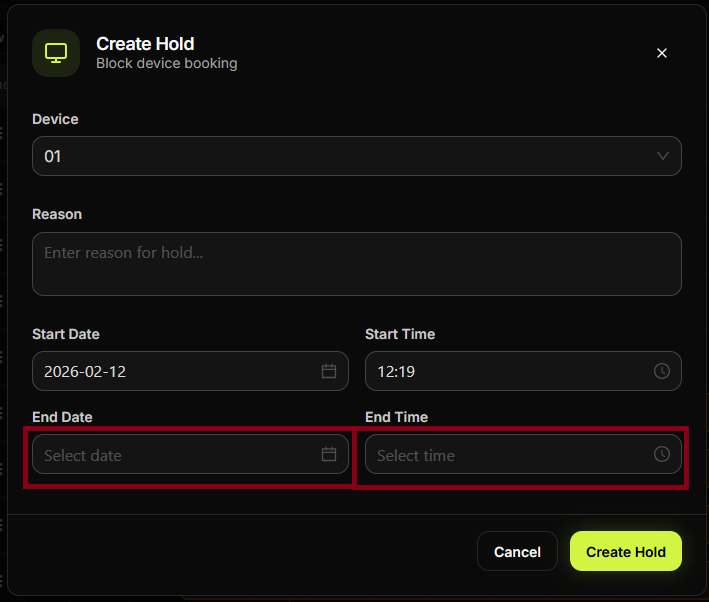
Step 6
Wait for the process to complete. Do not use the PC for sessions during installation if the system recommends it.
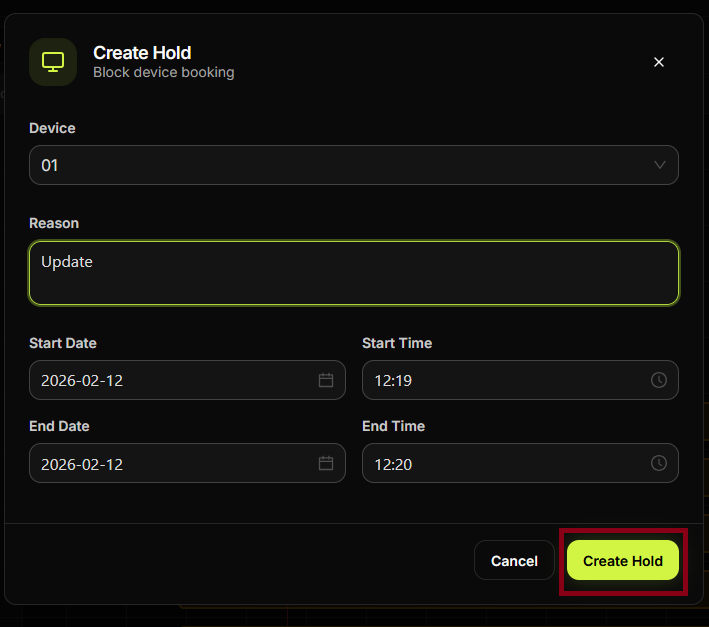
Step 7
When finished, the game is updated or installed. You can run the same for other games or devices.
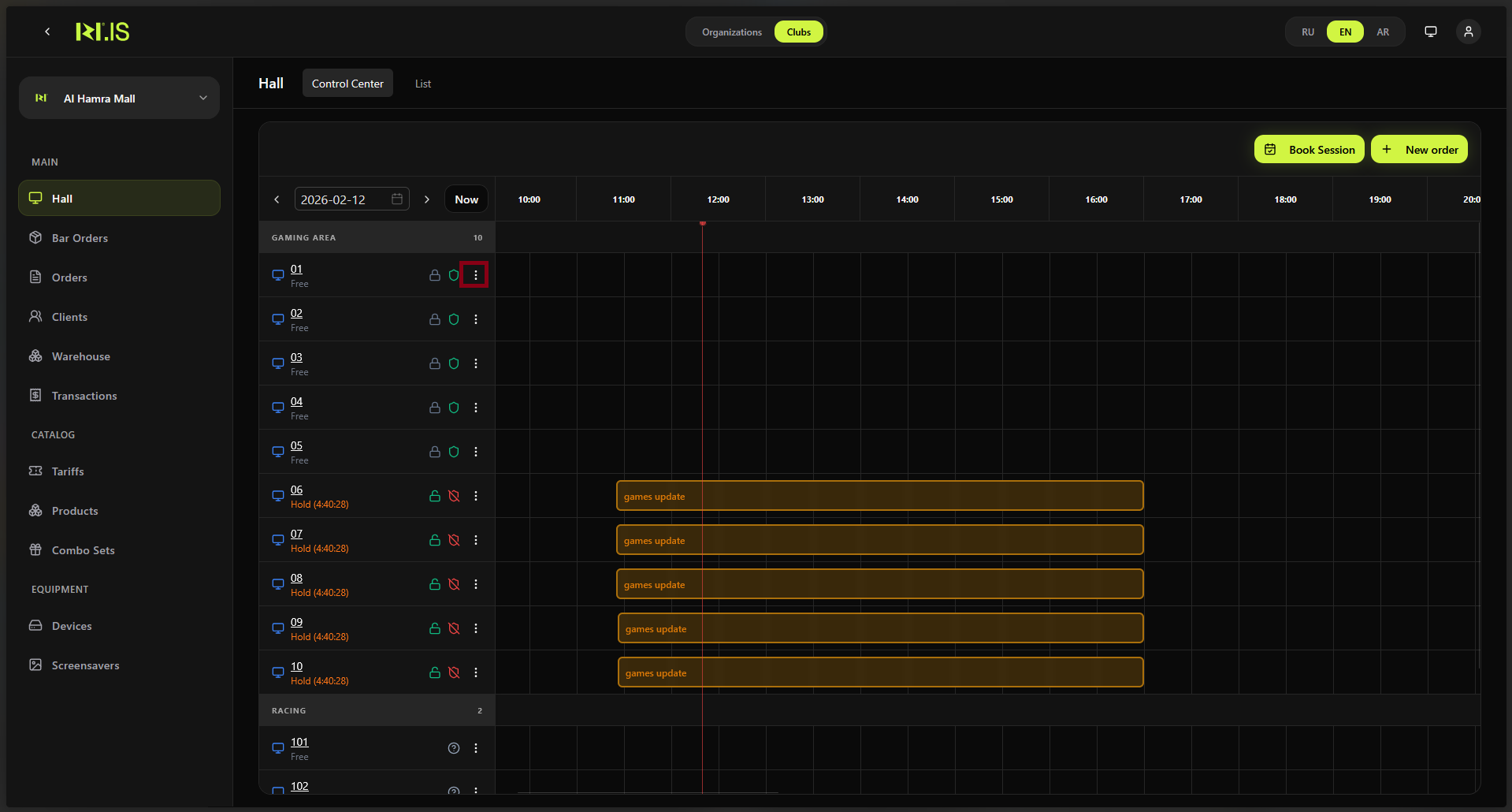
Step 8
Optionally check the device status or game list to confirm.
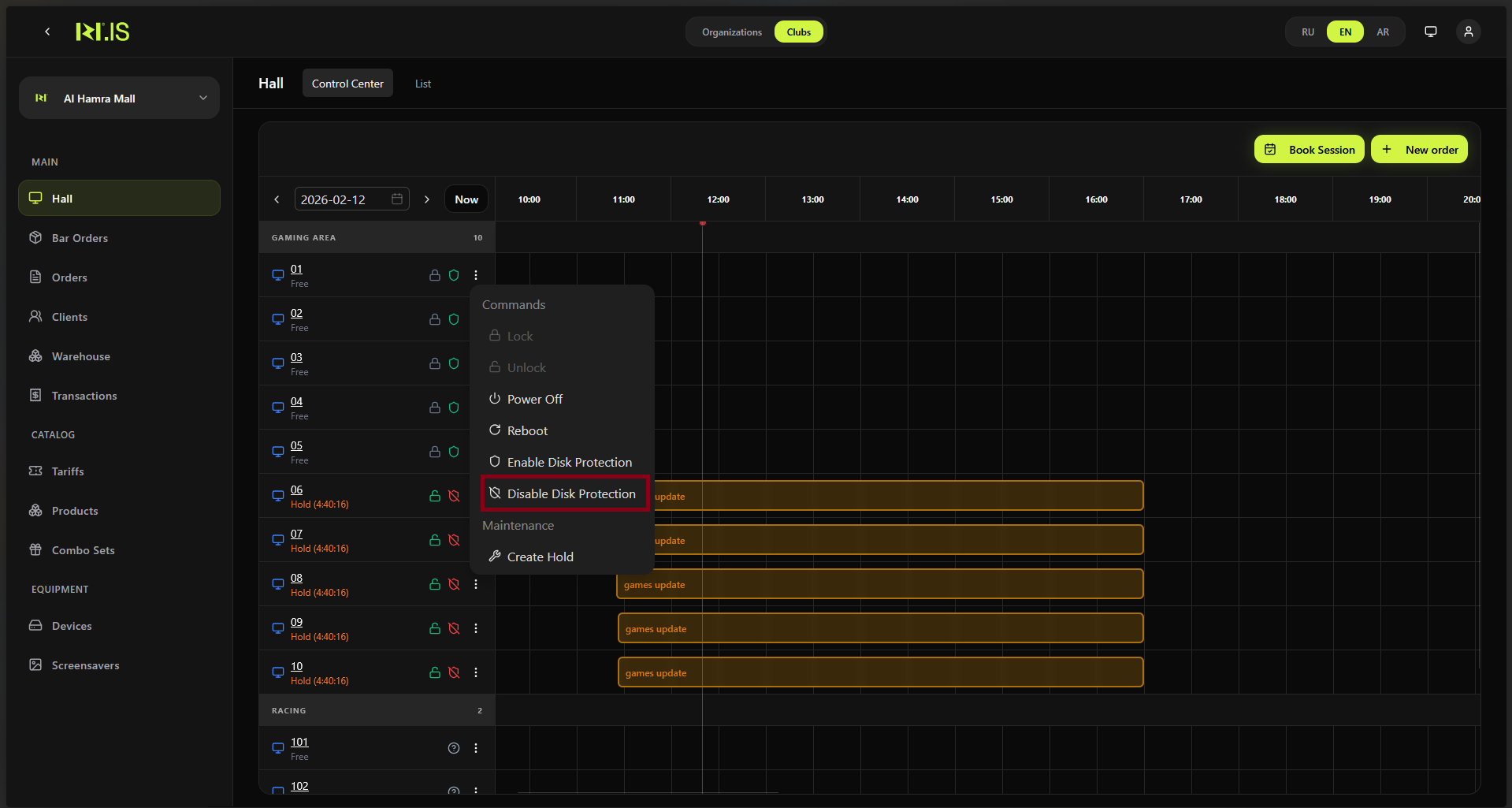
Step 9
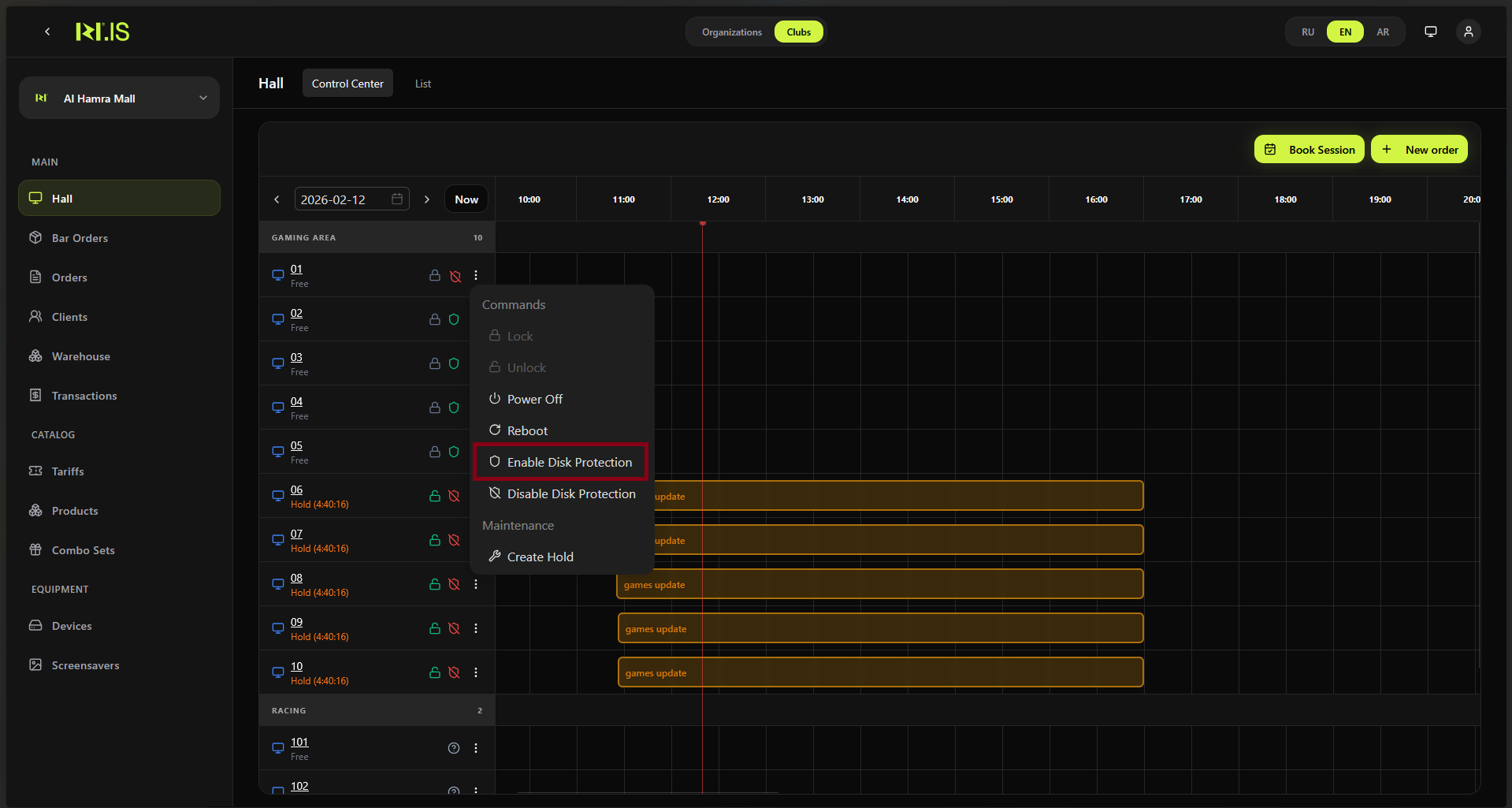
Return to the device list or Hall. The PC is ready for use (or put on hold if you need to test).
Summary
Updates and installations are done per device. Flow: Devices → select PC → games/updates → select game(s) → start → wait for completion.
Common situations
| PC in use | Put the PC on hold or wait until the session ends before running updates. |
| Update failed | Check network and disk space; retry or contact technical support. |