Inventory
Carry out a stock count (inventory) in the Warehouse: compare actual quantities on the shelf with the system and adjust balances if needed. Use the Inventory tab or the dedicated inventory flow.
Step 1
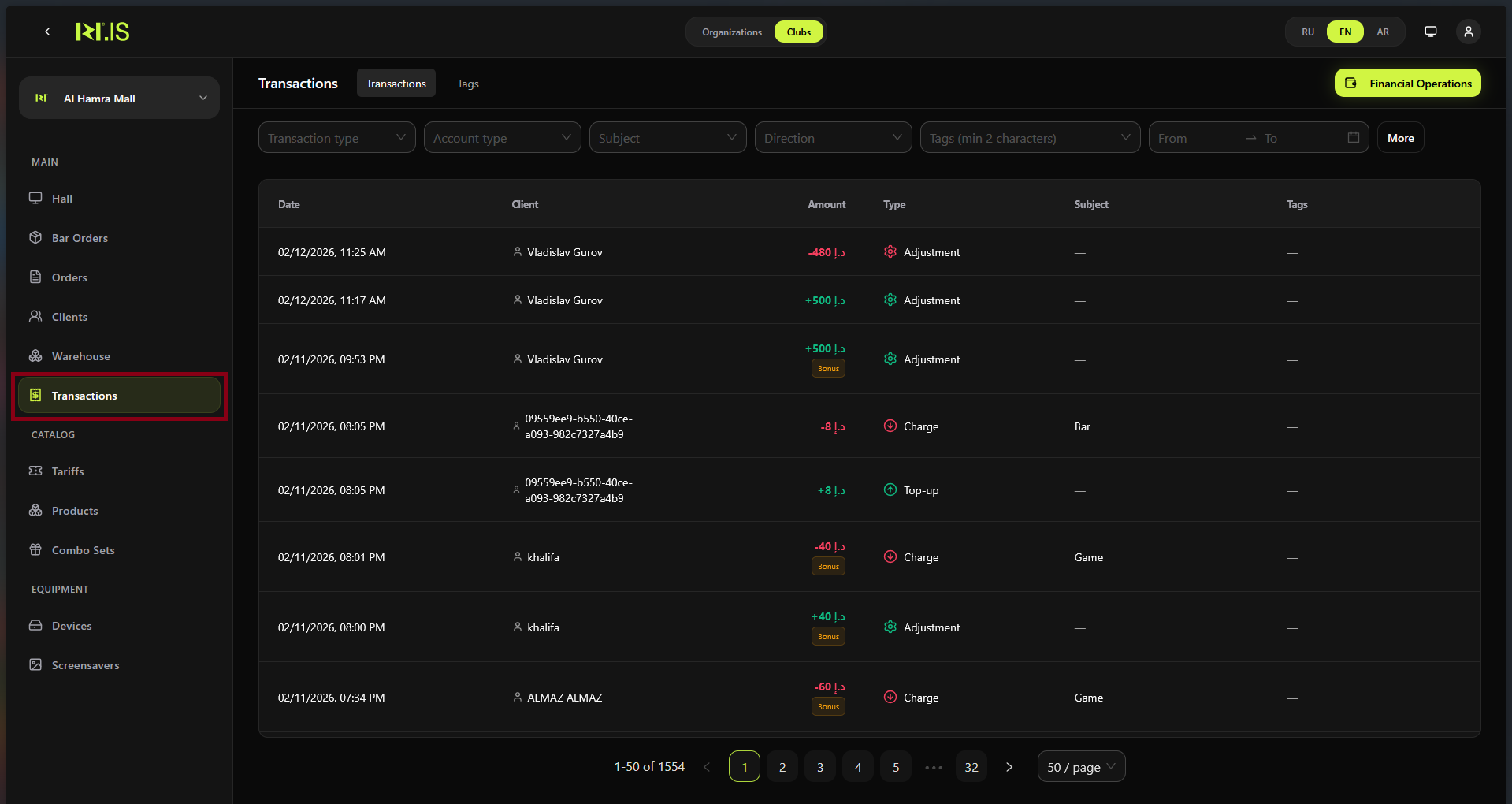
Open Warehouse in the left sidebar. Open the Inventory tab (or "Stock count", "Inventory check").
Step 2
Start a new inventory (or open an existing draft). Select the club/location and date if required.
Step 3
For each product (or scan barcode), enter the actual quantity counted. The system may show the current stock for comparison.
Step 4
Complete the count for all products or the selected range. You can save as draft and continue later.
Step 5
Confirm or submit the inventory. The system calculates differences (actual vs system) and may create adjustment transactions.
Step 6
Review the result: list of discrepancies, if any. Approve adjustments if the system requires it.
Step 7
Inventory is completed. Stock levels in the Warehouse are updated. You can view the report or History.
Summary
Inventory = physical count vs system stock. Flow: Warehouse → Inventory tab → enter actual quantities → confirm → approve adjustments → stock updated.
Common situations
| Large discrepancy | Recount the product; check receipts and write-offs in History before approving. |
| Cannot edit after submit | Create a new inventory or use Adjust balance / write-off for corrections after the fact. |