Top up player balance
Add money to a player's balance using Financial Operations → Accept payment from the Transactions section.
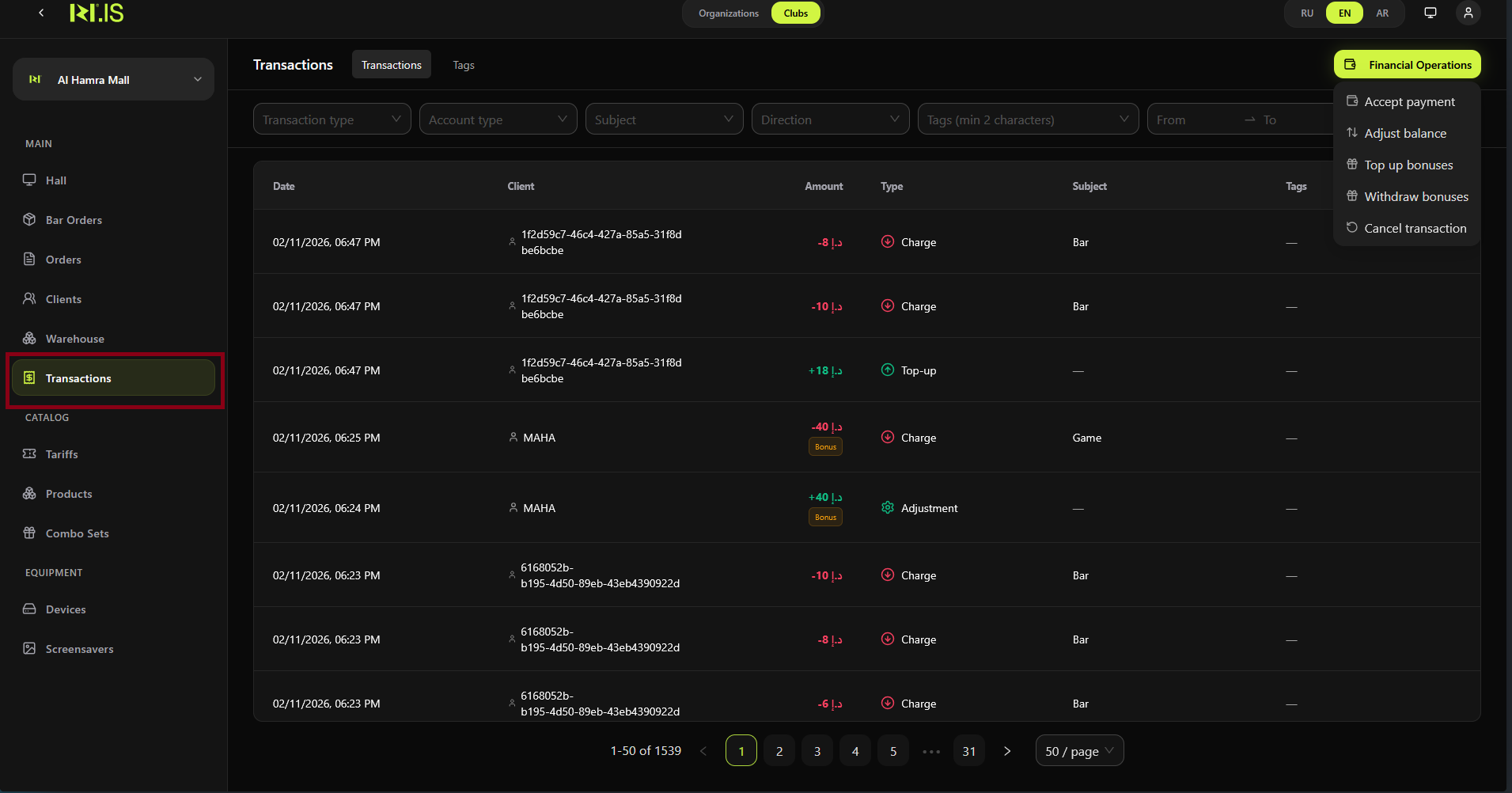
Step 1. Open Transactions
In the left sidebar, select Transactions. The transaction list and the Financial Operations button are displayed.
Step 2. Open Financial Operations
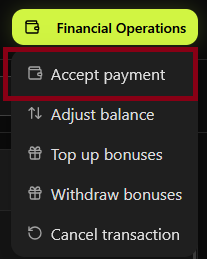
Click Financial Operations in the top right. In the dropdown, select Accept payment.
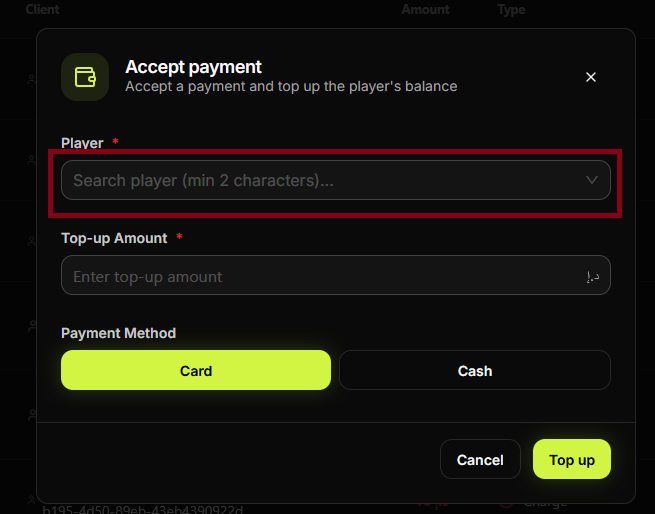
Step 3. Select the player
In the payment dialog, select or search for the **Player ***. Choose the correct client.
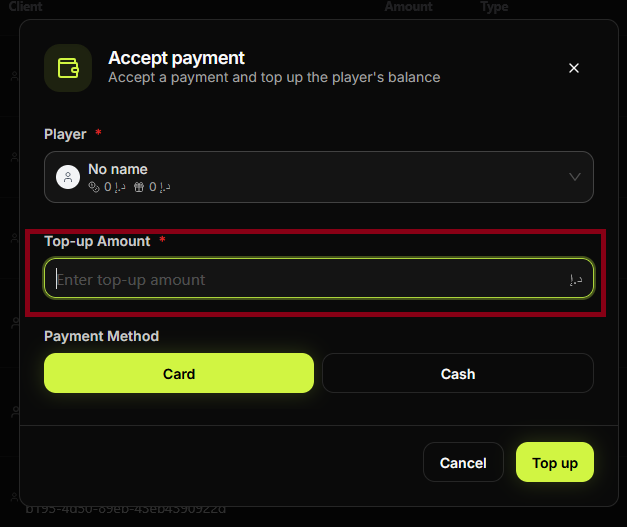
Step 4. Enter Top-up Amount
In the **Top-up Amount *** field, enter the amount to add to the player's balance.
Step 5. Choose payment method
Under Payment Method, select Card or Cash depending on how the customer pays.
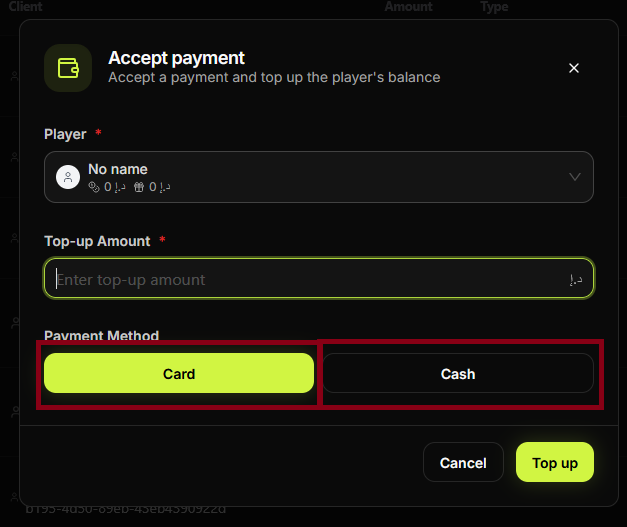
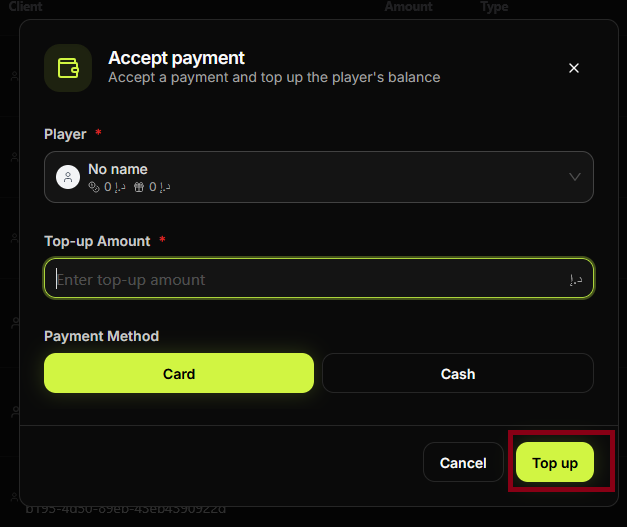
Step 6. Click Top up
Review the player, amount, and payment method. Click Top up to complete the operation. The player's balance is updated and the transaction appears in the list.
Summary
This flow adds real money to the player's main balance (not bonuses). Use Accept payment for cash or card payments received at the club.
| 1–2 | Transactions → Financial Operations → Accept payment |
| 3 | Select player |
| 4–5 | Enter amount, choose payment method (Card/Cash), add reason if required |
| 6 | Confirm — balance is updated |
Common situations
| Need to add bonuses | Use Financial Operations → Top up bonuses, not Accept payment. |
| Wrong amount or player | Cancel before confirming. After confirmation, use Adjust balance or a reverse operation if your club allows it. |
| Reason required | Fill in the reason/comment field; the confirm button may be disabled until it is filled. |