Product sales
Sell products (e.g. bar or shop items) to a client by creating a new order from Orders, adding products to the cart, and completing payment.
Step 1. Open Orders
In the left sidebar, select Orders. The main area shows the orders list, filters, and tabs (Orders, Tariffs, Products, Combos).
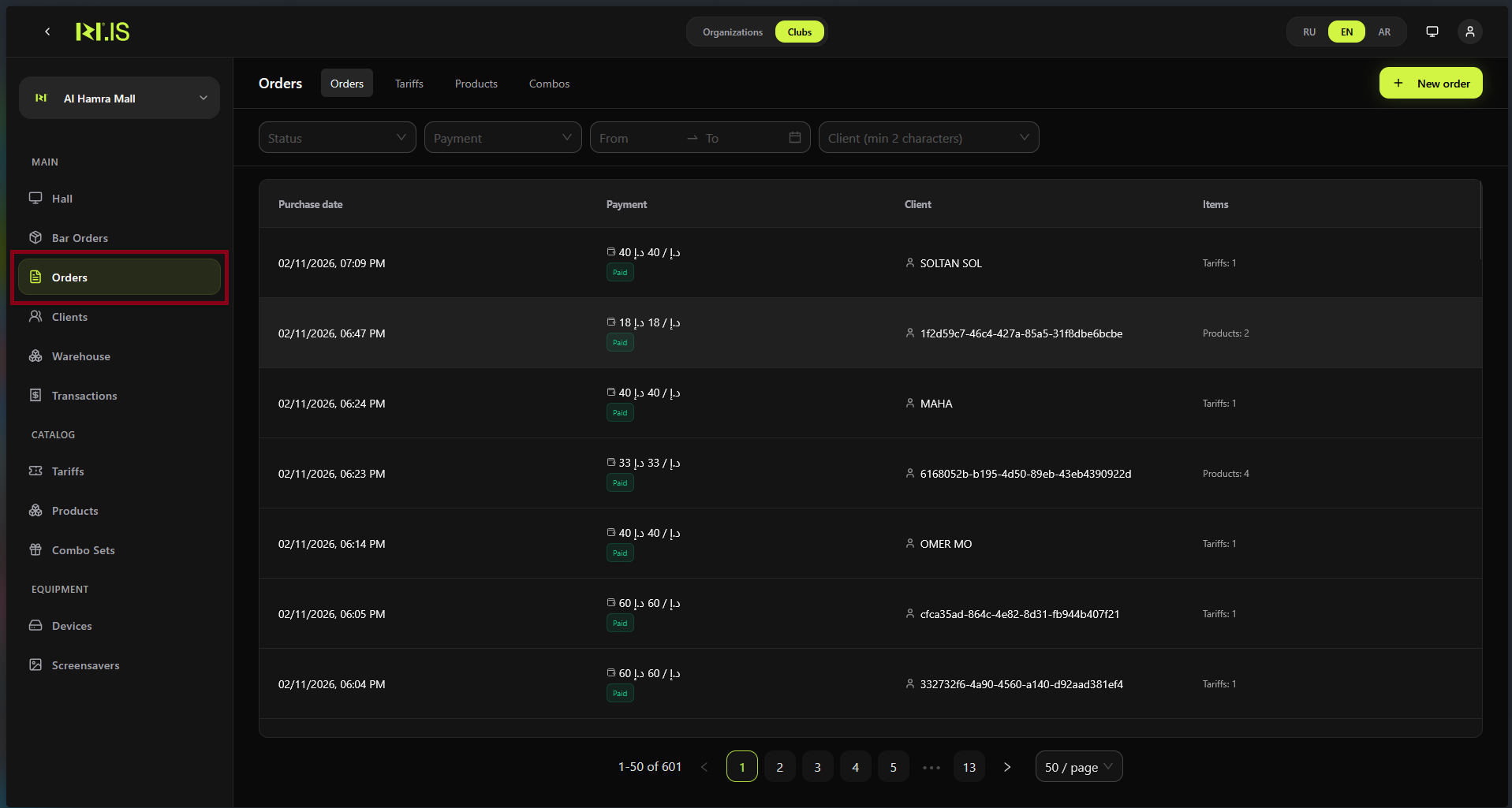
Step 2. Click + New order
In the top right of the main area, click + New order. The Place order screen opens.
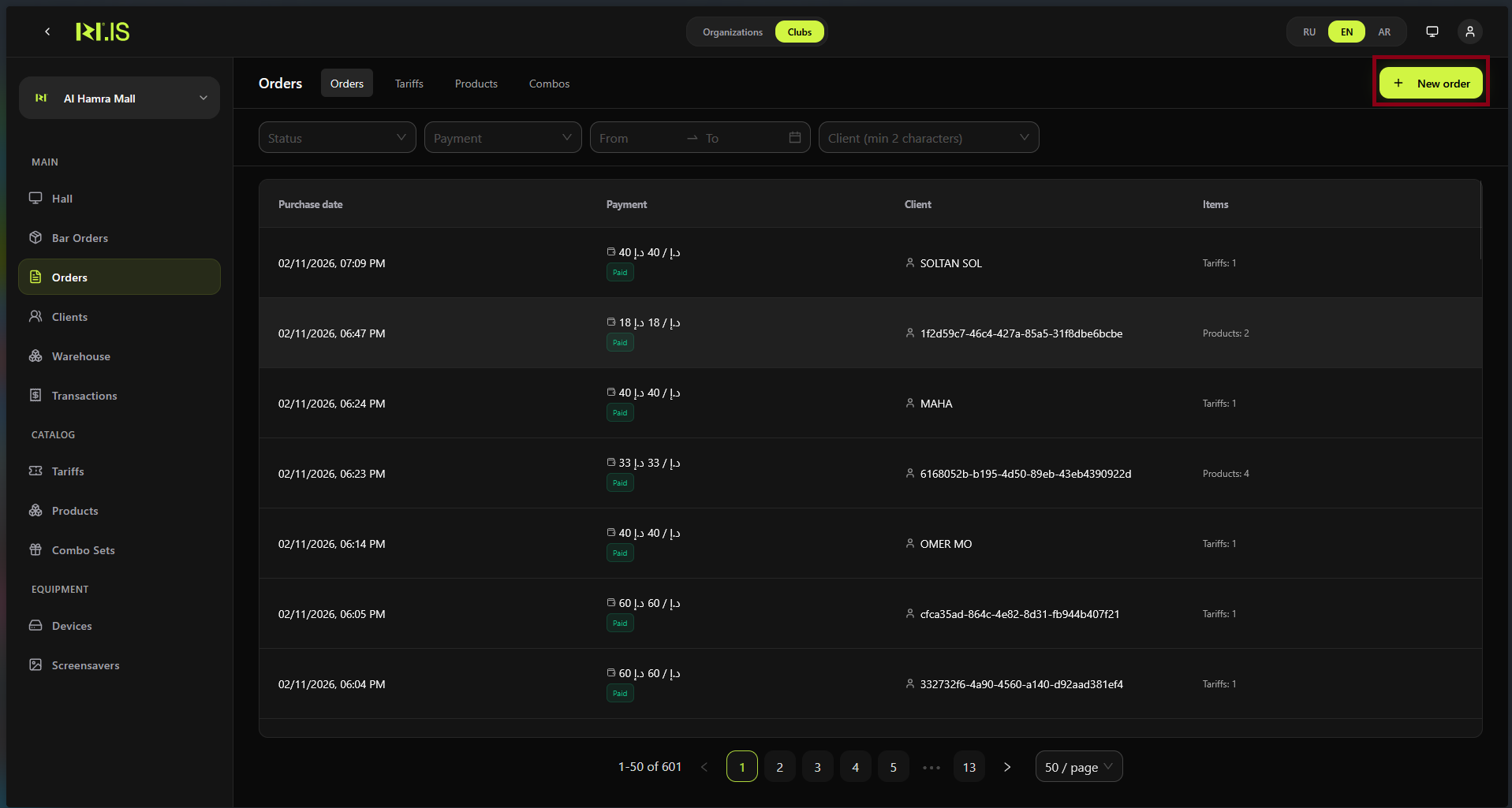
Step 3. Select the client
On the Place order screen, in the right panel click Select client. Choose Unknown guest, Register client, or an existing client from the list.
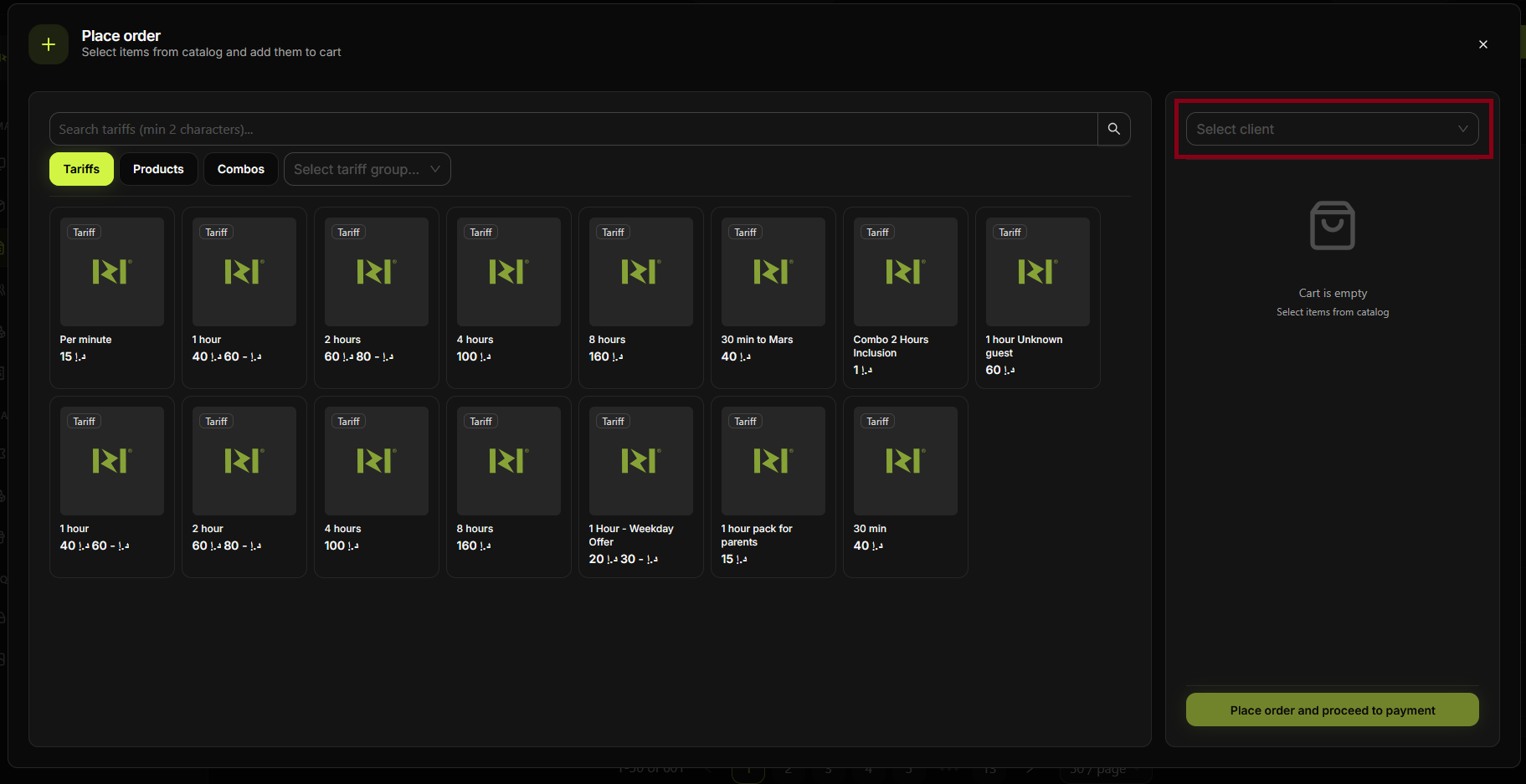
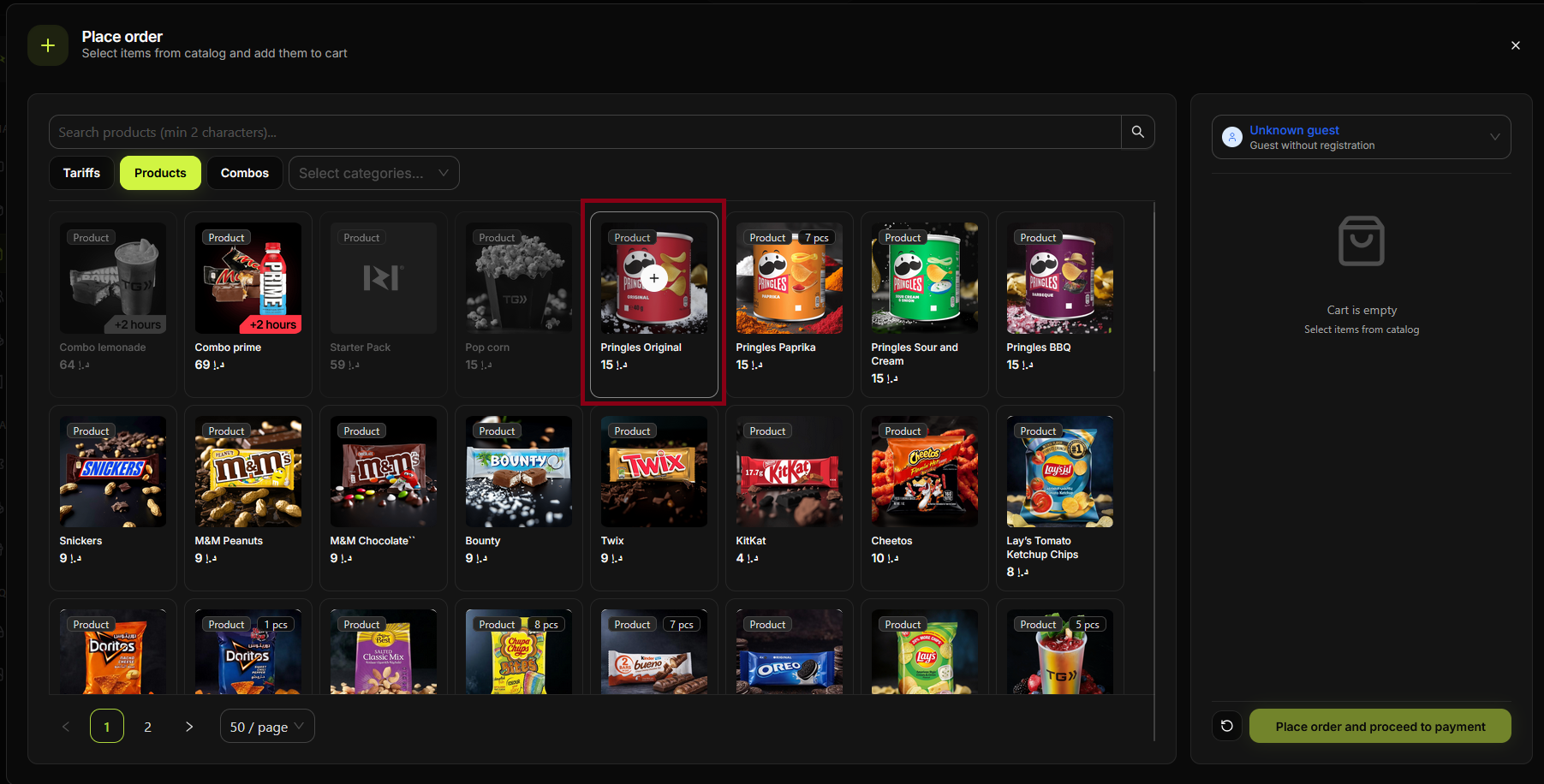
Step 4. Open the Products tab and browse
Click the Products tab (next to Tariffs and Combos). Use the search or Select categories... to find products. The right panel shows the selected client and an empty cart.
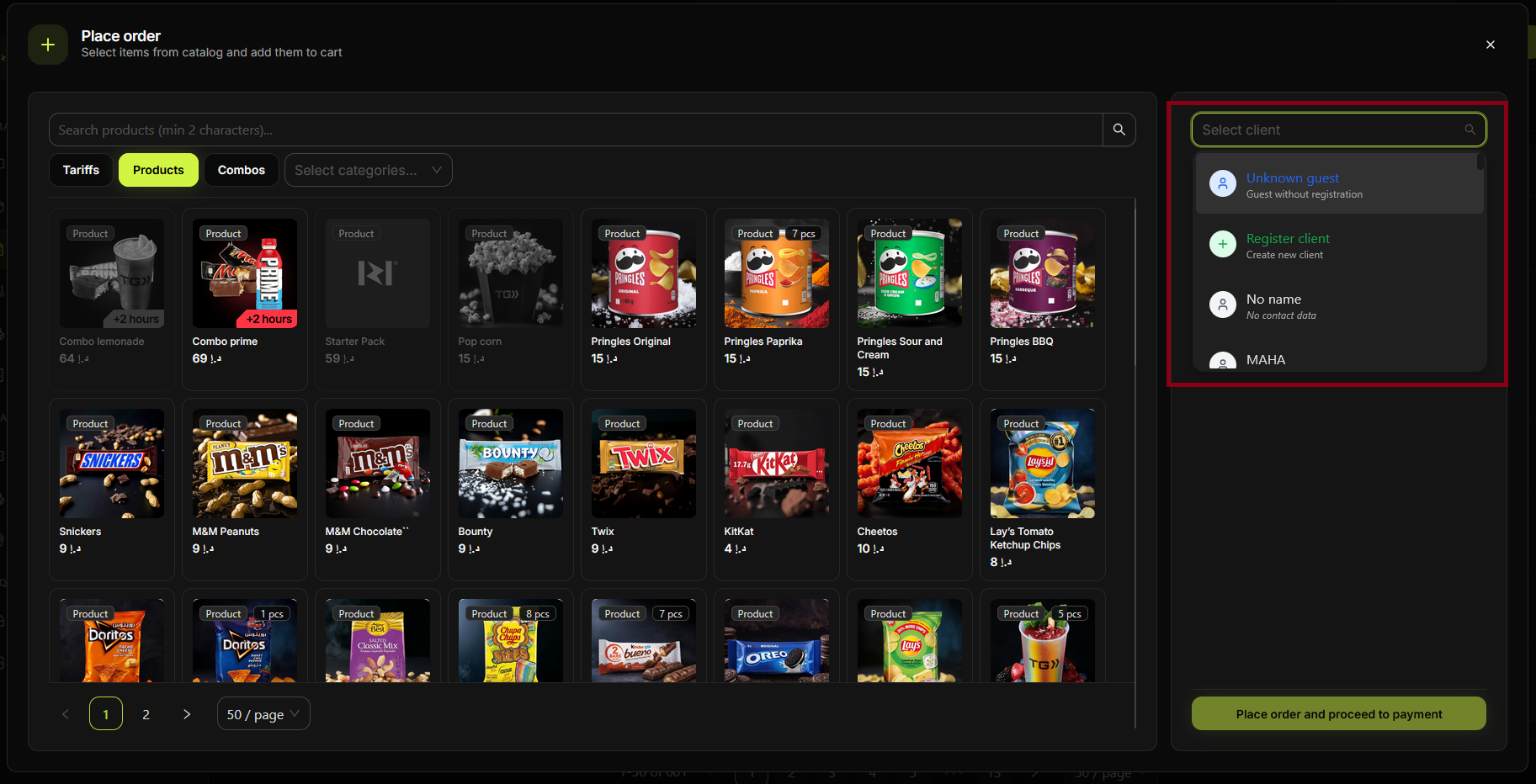
Step 5. Add products to the cart
Click a product card (e.g. the + on the image) to add the item to the cart. You can add several products; the cart appears in the right panel.
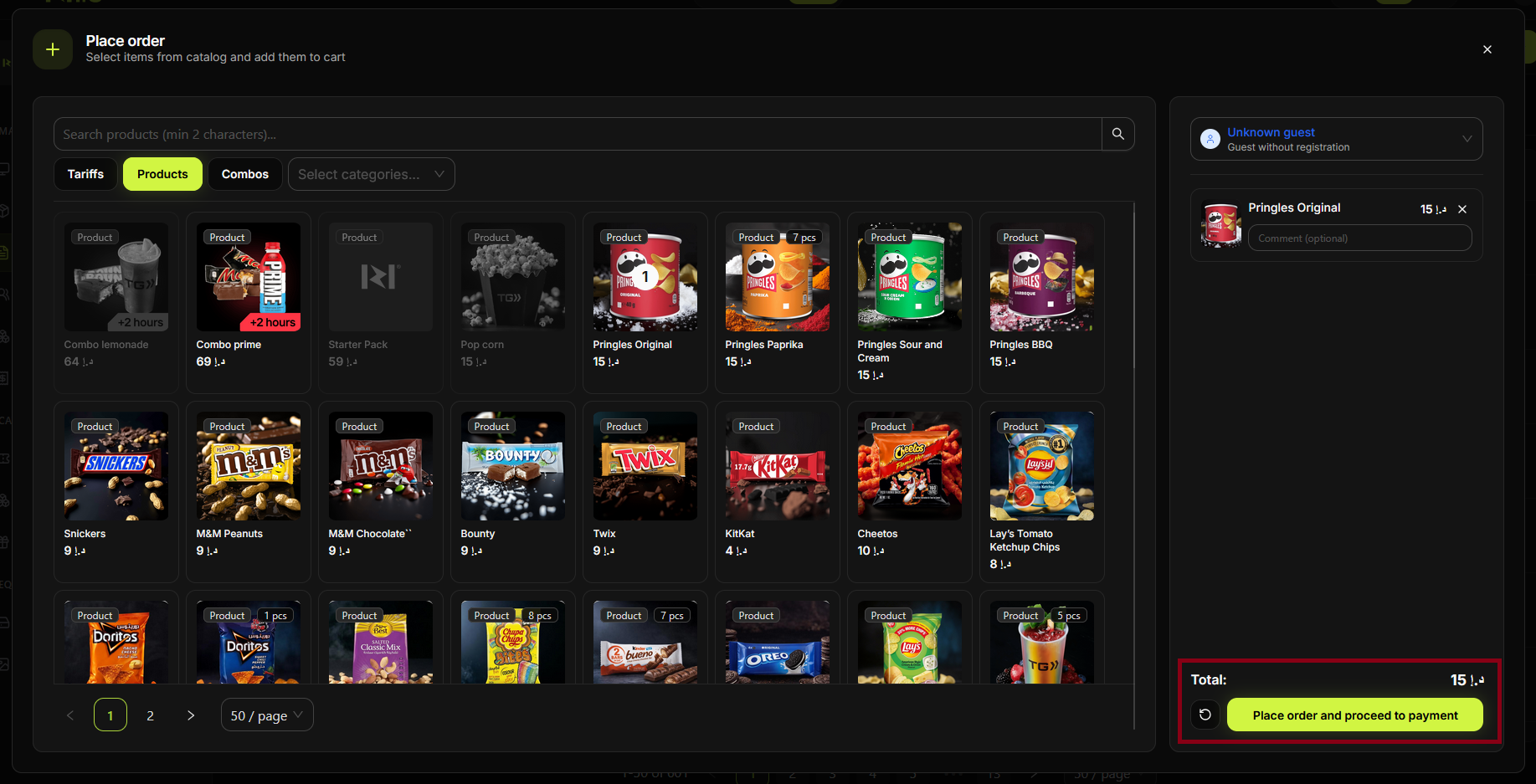
Step 6. Place order and proceed to payment
Check the cart (items and total). Optionally add a comment per item. Click Place order and proceed to payment at the bottom of the right panel. The Order (payment) dialog opens.
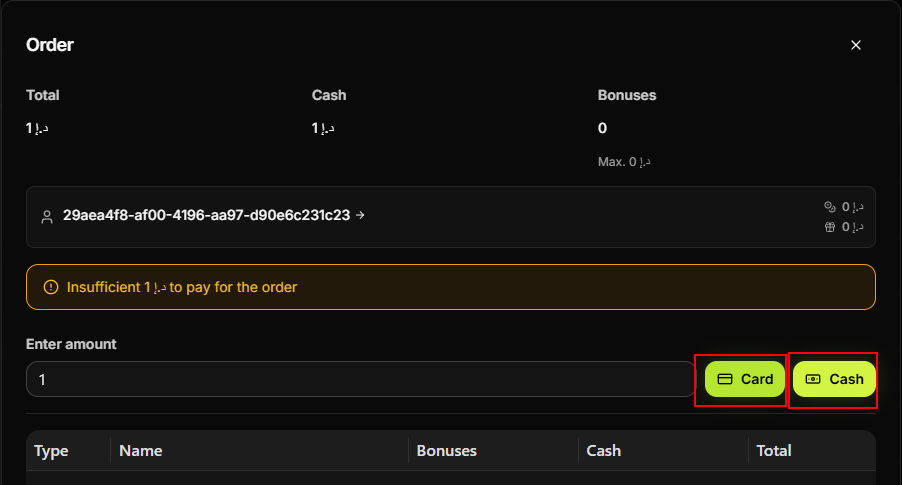
Step 7. Enter amount and choose Card or Cash
In the Order dialog, enter the amount in Enter amount, then click Card or Cash to complete the payment. The order is saved and appears in the Orders list.
Summary
| 1–2 | Orders → + New order |
| 3 | Select client (registered or guest) |
| 4–5 | Add products to cart, set quantities, review cart |
| 6–7 | Place order and proceed to payment → enter amount, Card/Cash → complete |
Common situations
| Client not found | Search by name/phone or create/select a guest if your club allows orders without a registered client. |
| Wrong product or quantity | Adjust in the cart before "Place order"; remove item or change quantity. |
| Payment amount less than total | Enter an amount at least equal to the order total before choosing Card or Cash. |
| Order not in list | Refresh the Orders list or check the date filter; the new order appears after payment is completed. |