Edit and write-off player balance
Adjust a player's balance (correct an amount or write off funds) using Financial Operations → Adjust balance from the Transactions section.
Step 1. Open Transactions
In the left sidebar, select Transactions. Click Financial Operations in the top right.
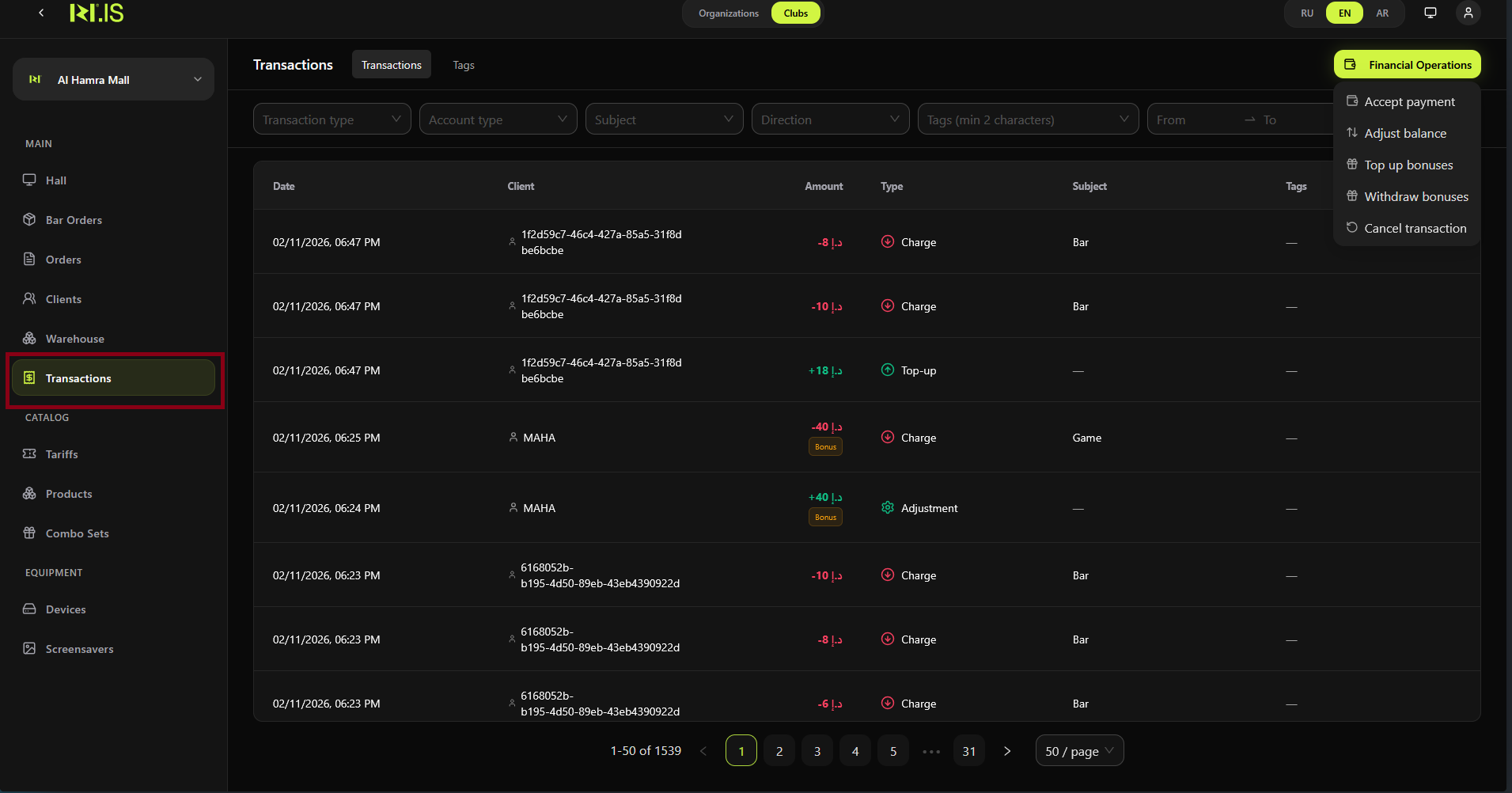
Step 2. Choose Adjust balance
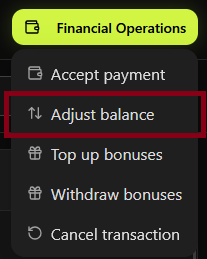
In the dropdown, select Adjust balance. The adjustment dialog opens.
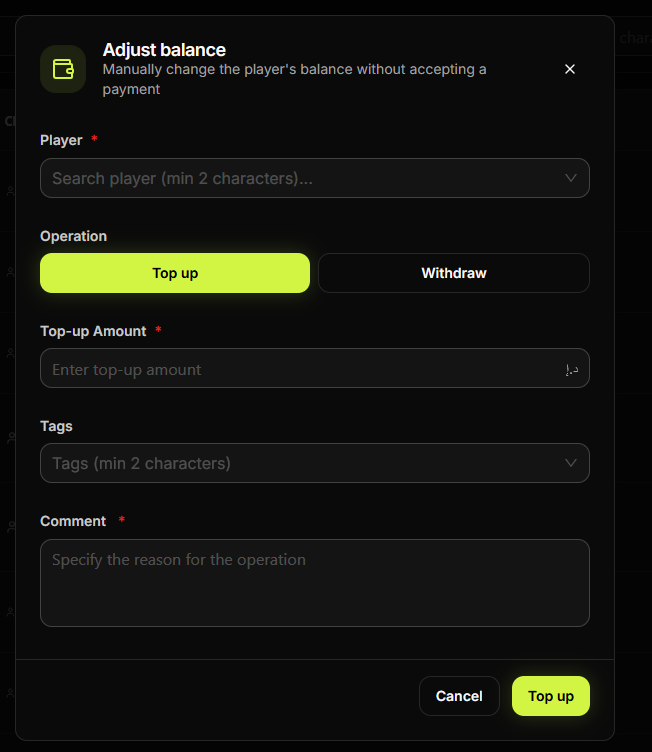
Step 3. Adjust balance dialog opens
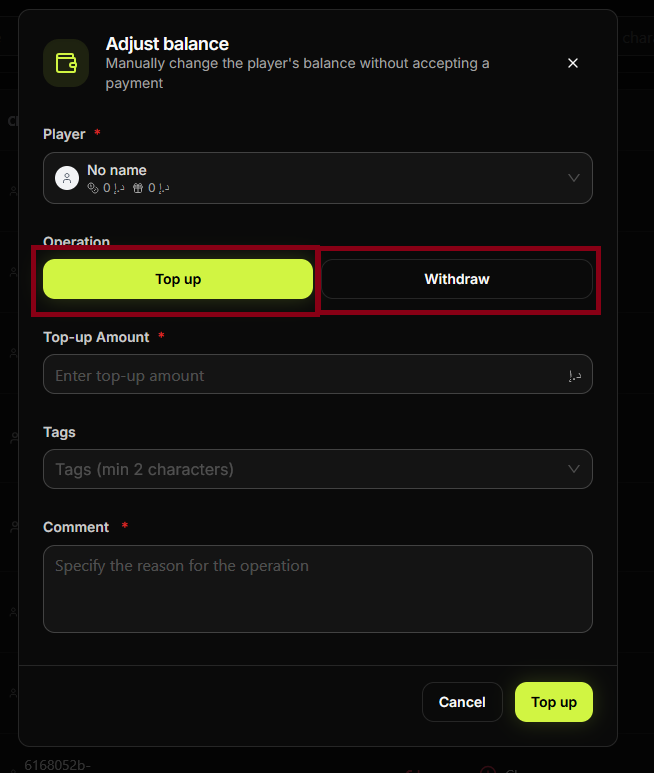
The Adjust balance dialog appears: "Manually change the player's balance without accepting a payment." You will see fields for Player, Operation (Top up / Withdraw), Top-up Amount, Tags, and Comment.
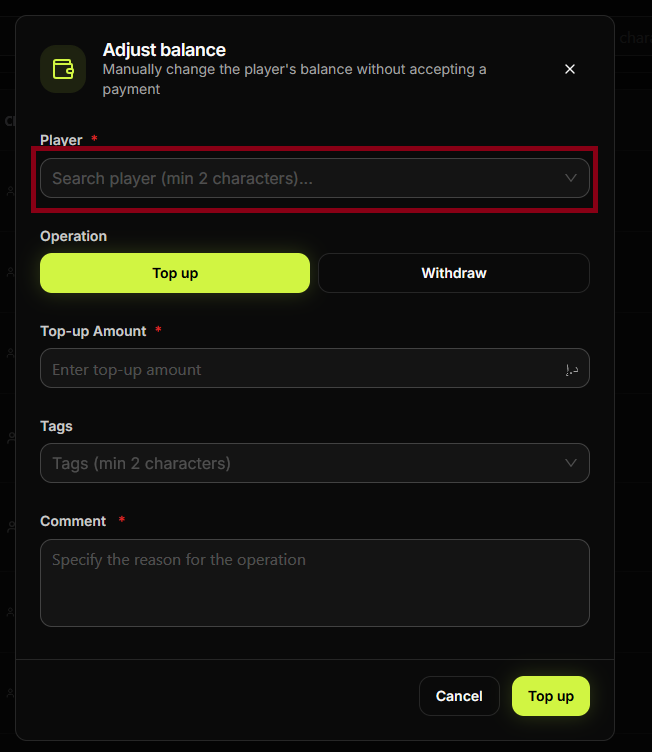
Step 4. Select the player
In the **Player *** field, search and select the player whose balance you are adjusting.
Step 5. Choose operation: Top up or Withdraw
Under Operation, select Top up to add to the balance, or Withdraw to deduct from it.
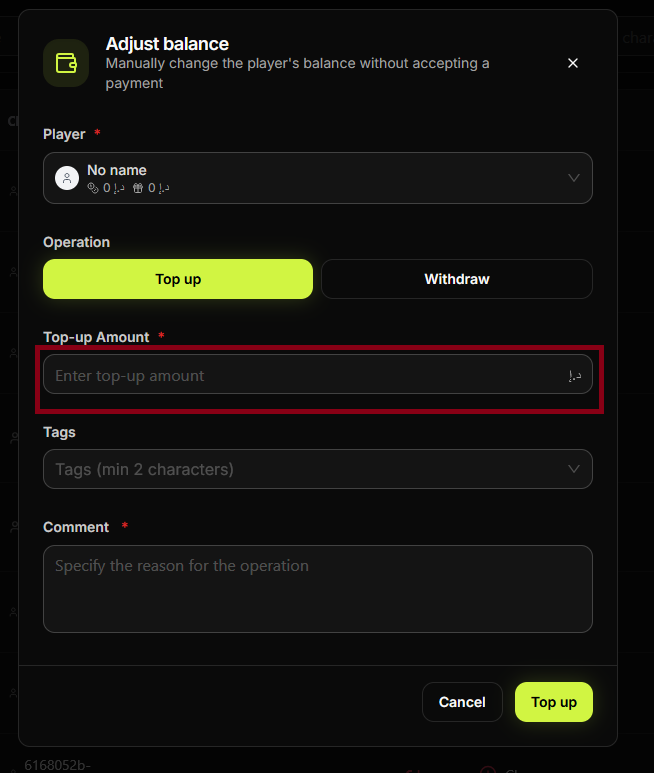
Step 6. Enter Top-up Amount
In **Top-up Amount ***, enter the amount (positive for top-up, or the amount to withdraw).
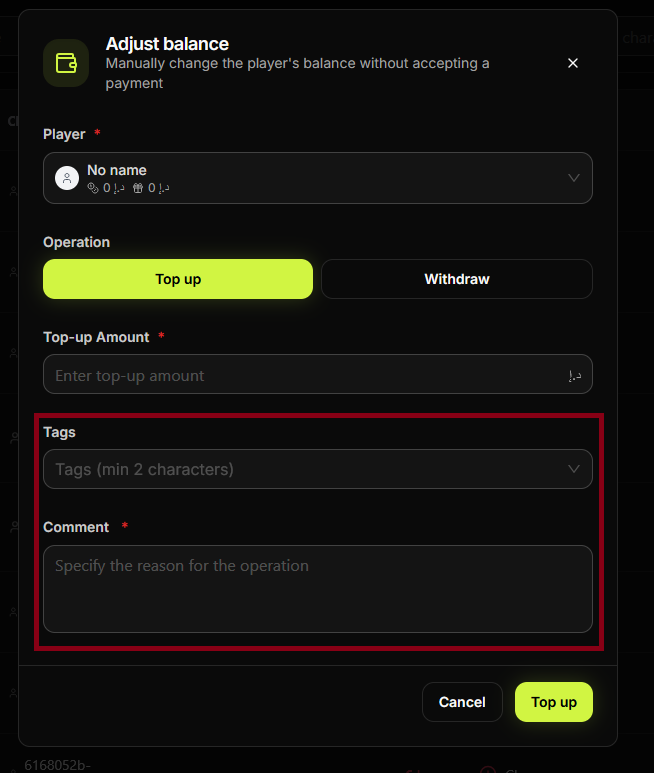
Step 7. Add Tags and Comment
Optionally fill in Tags. Fill in **Comment *** (required) to document the reason for the operation.
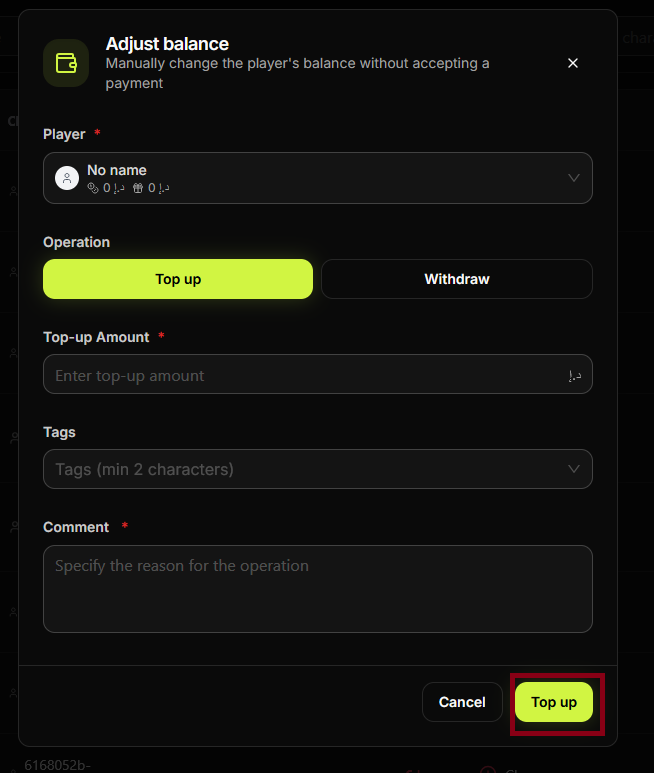
Step 8. Confirm
Review the player, operation type, amount, and comment. Click Top up or Withdraw to apply. The transaction appears in the Transactions list.
Summary
| Adjust balance (set/correct) | Financial Operations → Adjust balance → player → amount (positive or negative) and account type → reason → confirm. |
| Write-off | Same flow: use a negative amount (or write-off option if shown) and fill in the reason. |
Common situations
| Reason required | Comment/Reason is mandatory for audit; fill it in before confirming. |
| Wrong account (main vs bonus) | Select the correct account type in the dialog before entering the amount. |
| Write-off more than balance | System may block or warn; ensure the player's balance is sufficient or use the allowed negative limit if configured. |