Using one-time account
To seat a guest without registration, use the one-time (guest) account. Open the Book session flow, select Unknown guest, then choose the device and tariff, and complete payment.
Step 1. Open the Hall and start booking
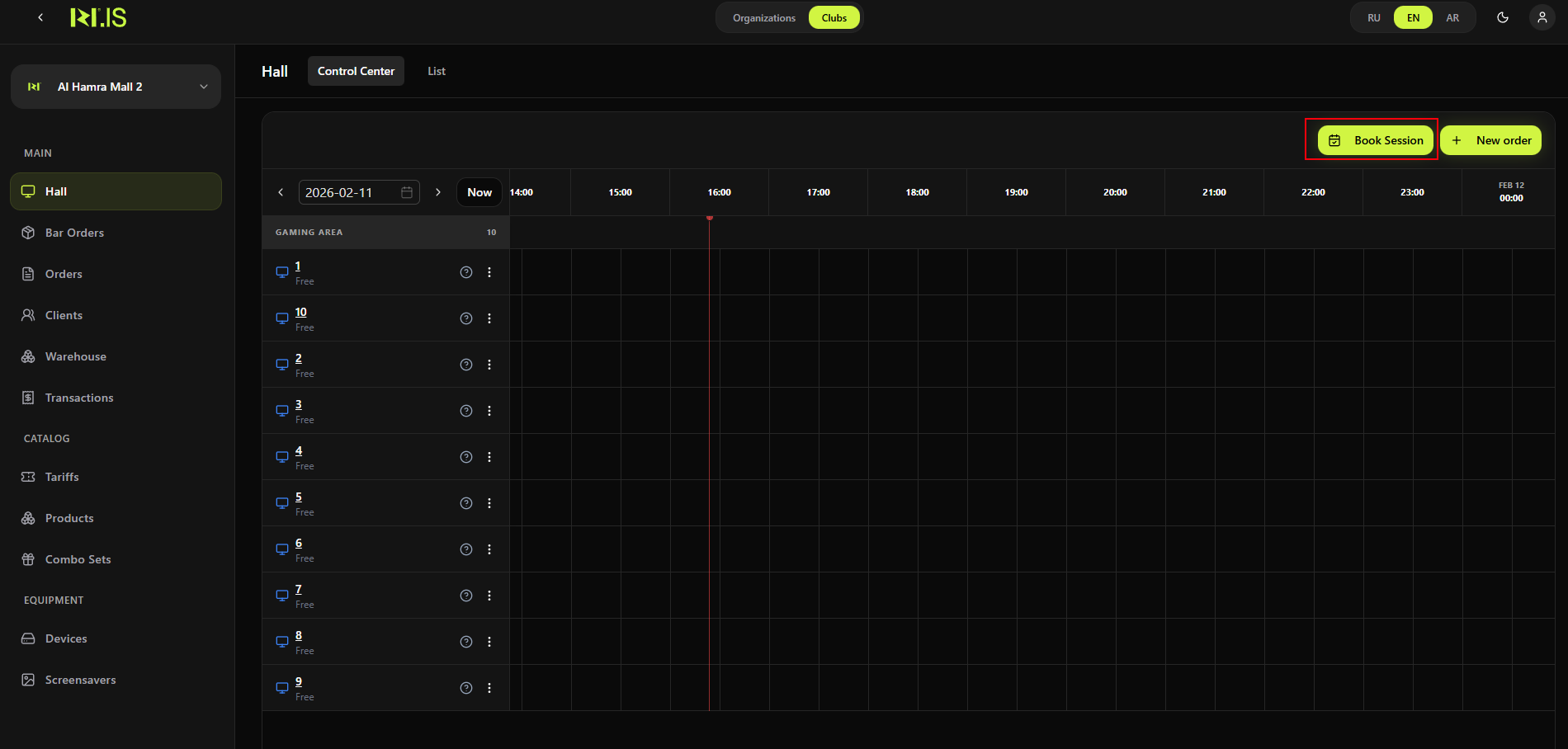
In the left sidebar, select Hall. You see the Hall view (timeline and devices). In the top right of the main area, click the Book Session button.
Step 2. Choose when the session starts
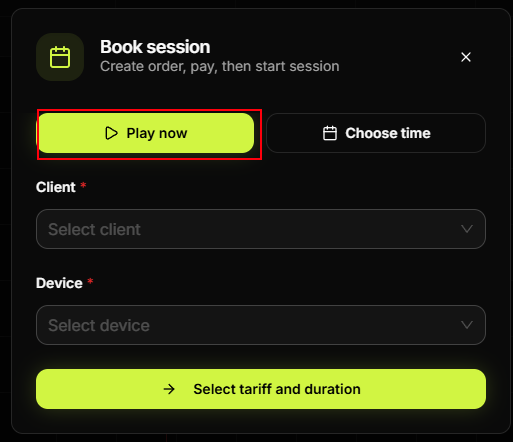
Select Play now to start immediately, or Choose time to set a future date and time. Then fill in **Client *** and **Device ***.
Step 3. Select the client — Unknown guest
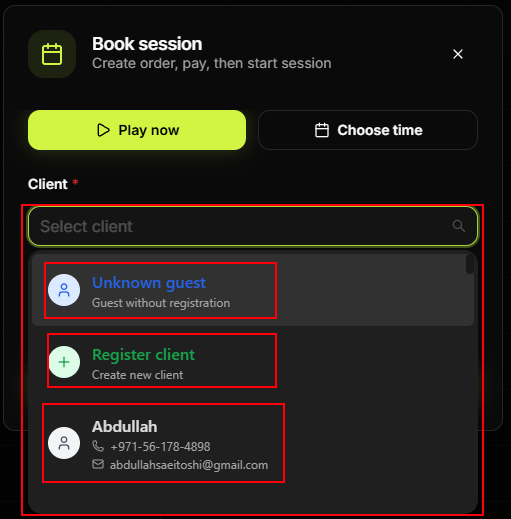
In the **Client *** field, open the dropdown and choose Unknown guest (Guest without registration). This is the one-time account option.
Step 4. Select the device
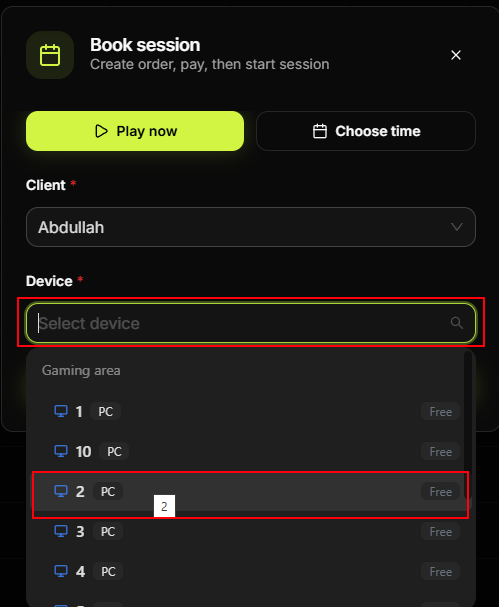
Click Select device and pick a free PC from the list (e.g. under Gaming area). Each line shows the PC number and status Free.
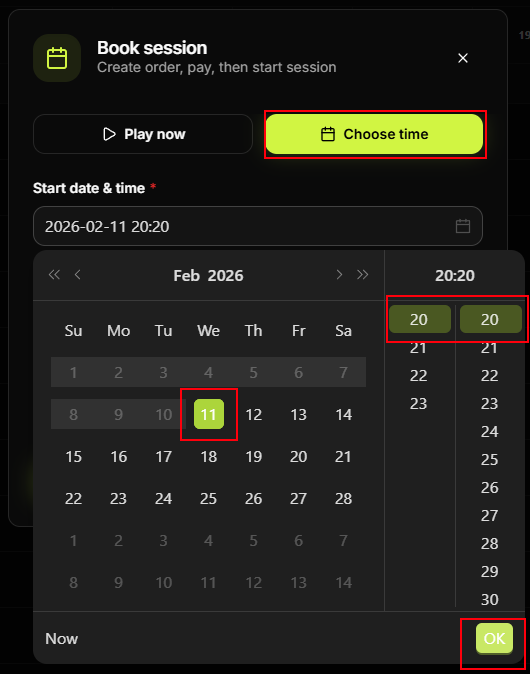
Step 5. (Only if you chose "Choose time") Set start date and time
If you selected Choose time, the **Start date & time *** field appears. Click it to open the calendar and time list: select the date (e.g. in the month view), then the hour and minute, and click OK.
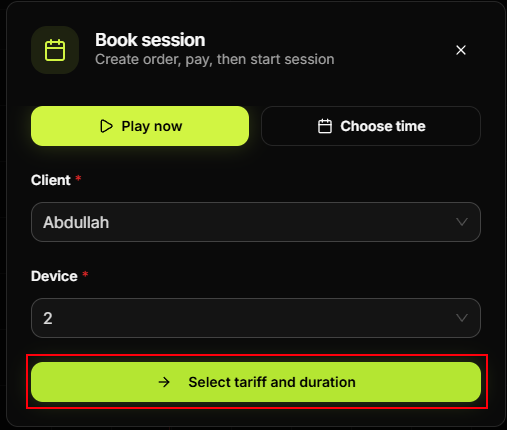
Step 6. Go to tariff selection
After Client and Device are set, click → Select tariff and duration.
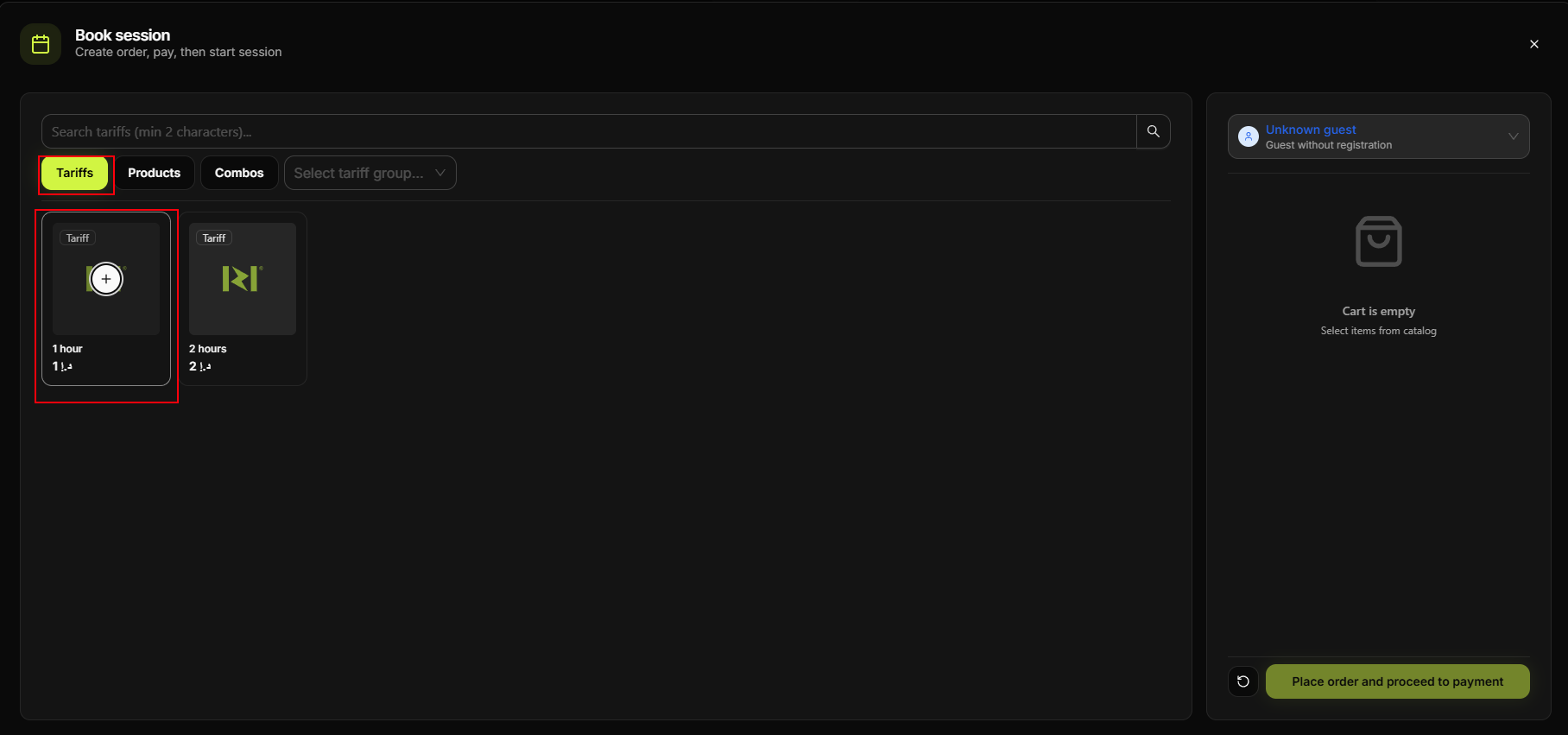
Step 7. Select a tariff
In the Tariffs tab, click the tariff you need (e.g. 1 hour, 2 hours). Use Search tariffs or Select tariff group... if needed. The right panel shows the guest and cart.
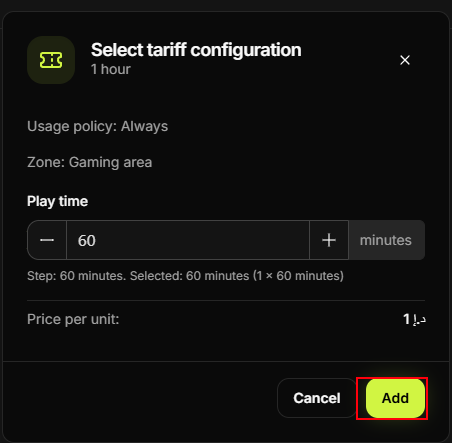
Step 8. Configure and add the tariff
If the Select tariff configuration window opens, set Play time (e.g. 60 minutes) with the minus/plus buttons, check Price per unit, and click Add.
Step 9. Place the order
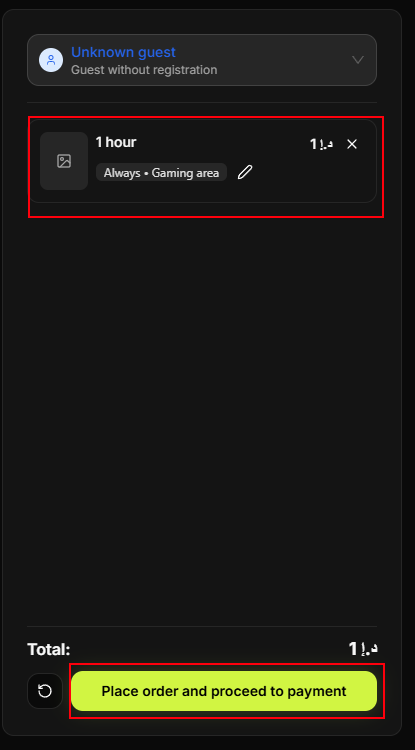
Check the cart (e.g. "1 hour", "Always • Gaming area") and the Total. Click Place order and proceed to payment.
Step 10. Pay for the order
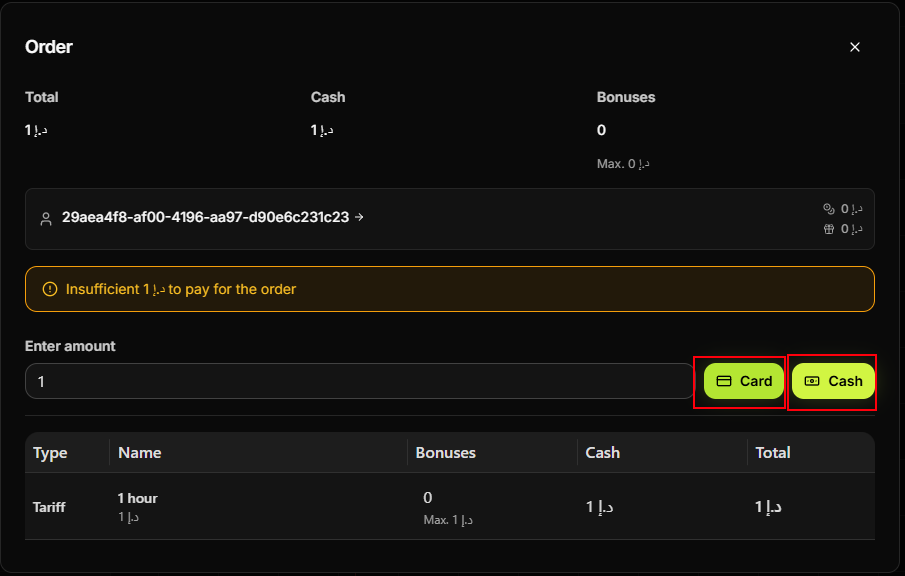
In the Order dialog, enter the amount in Enter amount, then choose Card or Cash and complete the payment. If you see an insufficient funds message, ensure the amount matches the total and the payment is completed.
After successful payment, the order is completed and the session is created. For Play now, the session starts immediately; for Choose time, it stays in Wait until the selected start time.
Summary of scenarios
| Guest seats now | Select Play now → Unknown guest → Device → Tariff → Pay. No date/time selection. |
| Guest booked for later | Select Choose time → set Start date & time → Unknown guest → Device → Tariff → Pay. |
In both cases the client is Unknown guest (one-time account). For a registered client or new registration, use the same flow but pick the client from the dropdown instead.
Common situations
| Client or Device missing | Both **Client *** and **Device *** are required before "Select tariff and duration". Choose Unknown guest and a free PC. |
| No free devices | Check another time slot or zone in the Control Center, or use Choose time for when a PC is free. |
| Insufficient amount to pay | Enter an amount at least equal to the order total and complete the payment (Card or Cash). |
| Session not starting (Play now) | Ensure payment completed successfully; refresh the Control Center and check the device status. |