Start session for player
Manually start a session that is in Wait (e.g. a pre-paid booking for a specific time). Find the session and trigger "Start" so the client can use the PC.
Step 1
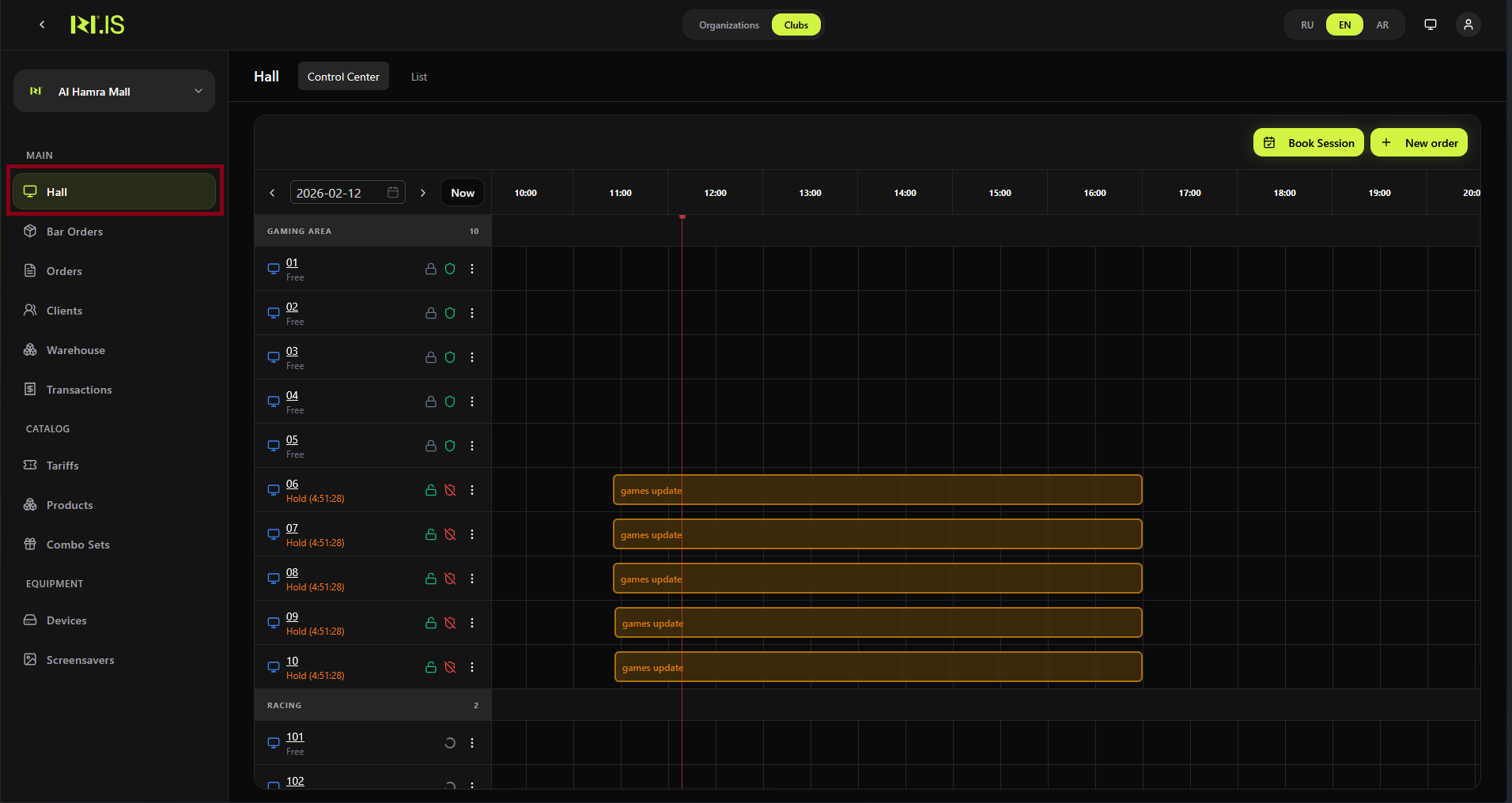
Open Hall (or Control Center / List). Switch to the correct date and time if needed.
Step 2
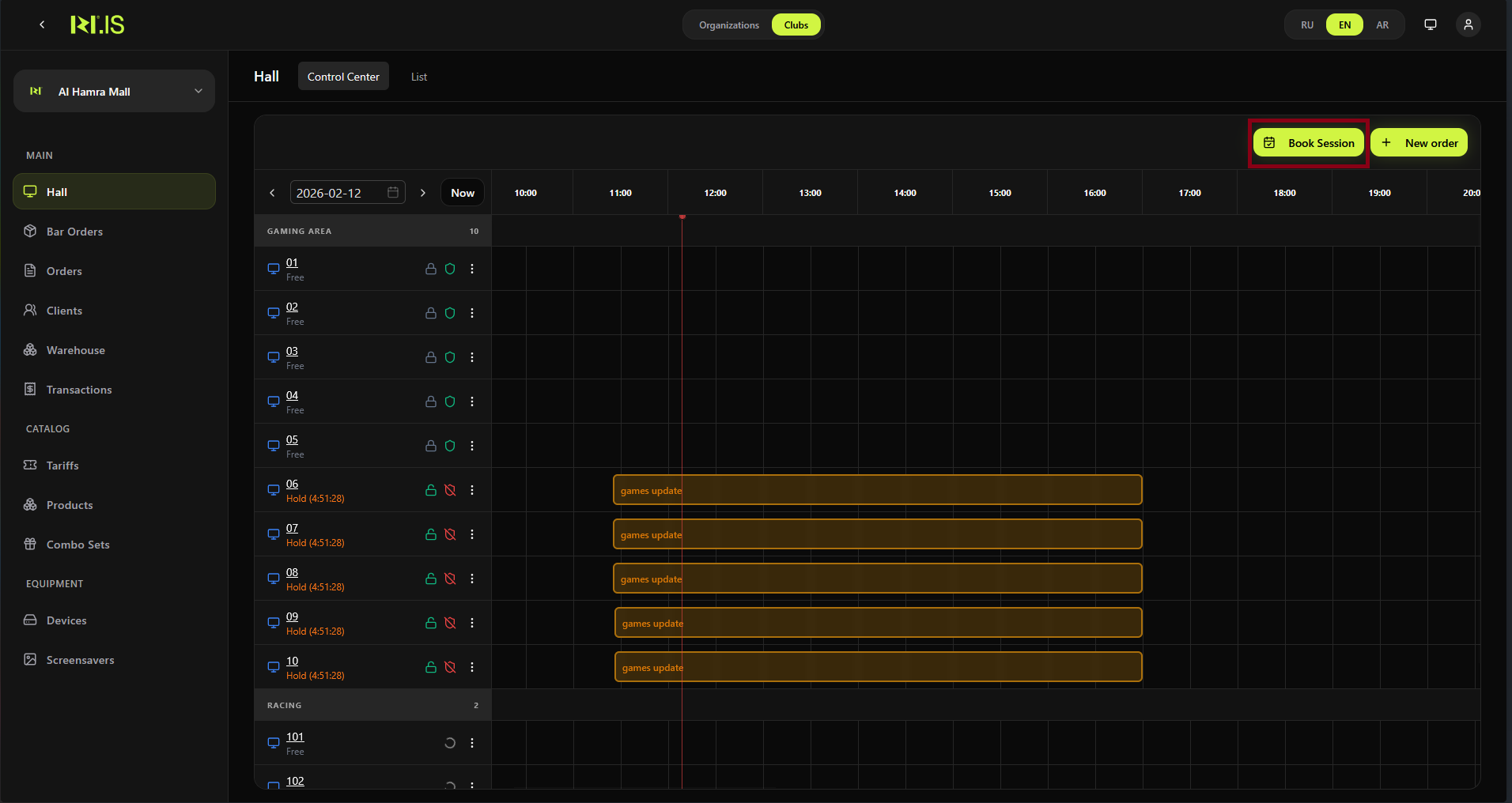
Find the device that has a session in Wait (or "Scheduled"). The session is paid but not yet started.
Step 3
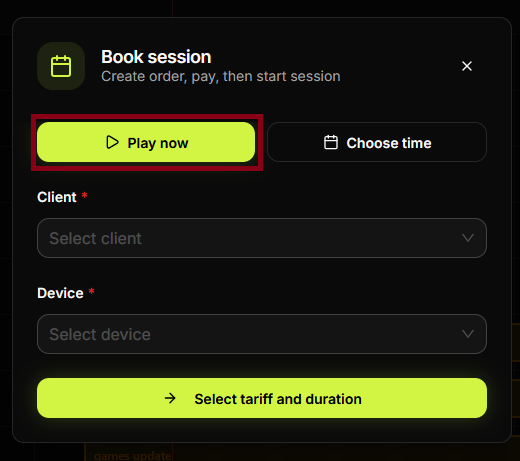
Open the session card or device menu. Select Start session (or "Start", "Activate").
Step 4
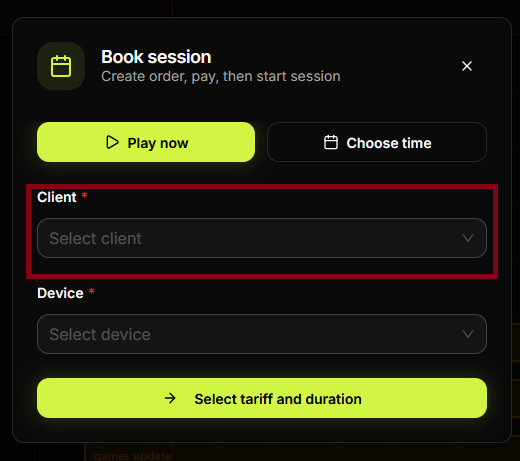
Confirm the start. The session status changes from Wait to Active.
Step 5
The device shows the session as active. The client can sit down and use the PC.
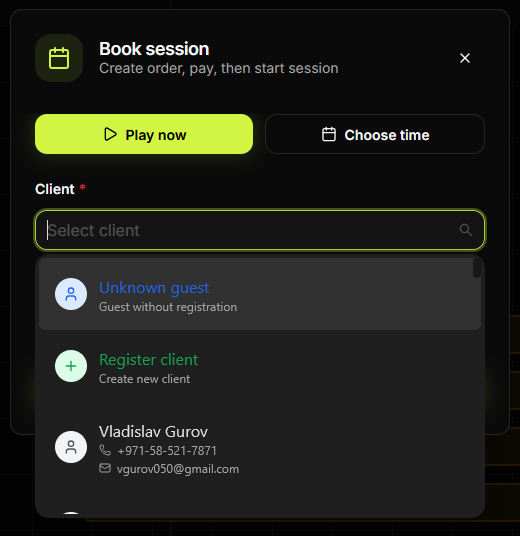
Step 6
Timer or remaining time is displayed (if your system shows it).
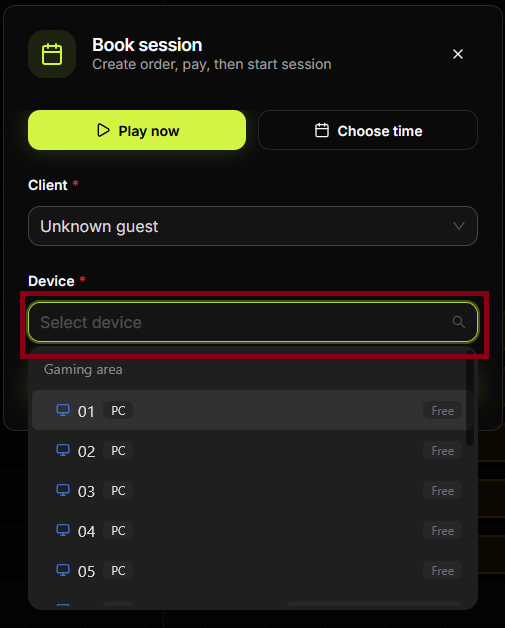
Step 7
You can see the active session in the Hall timeline.
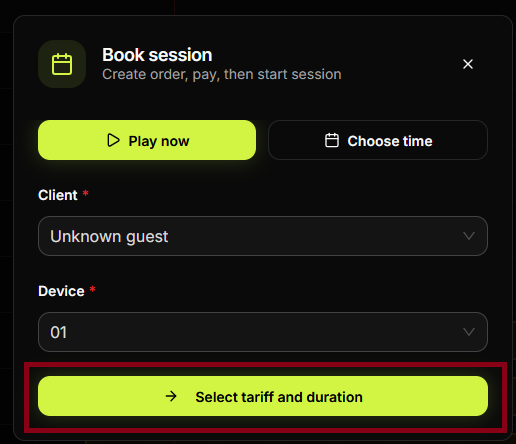
Step 8
Session details (client, tariff, time) are visible in the session card or list.
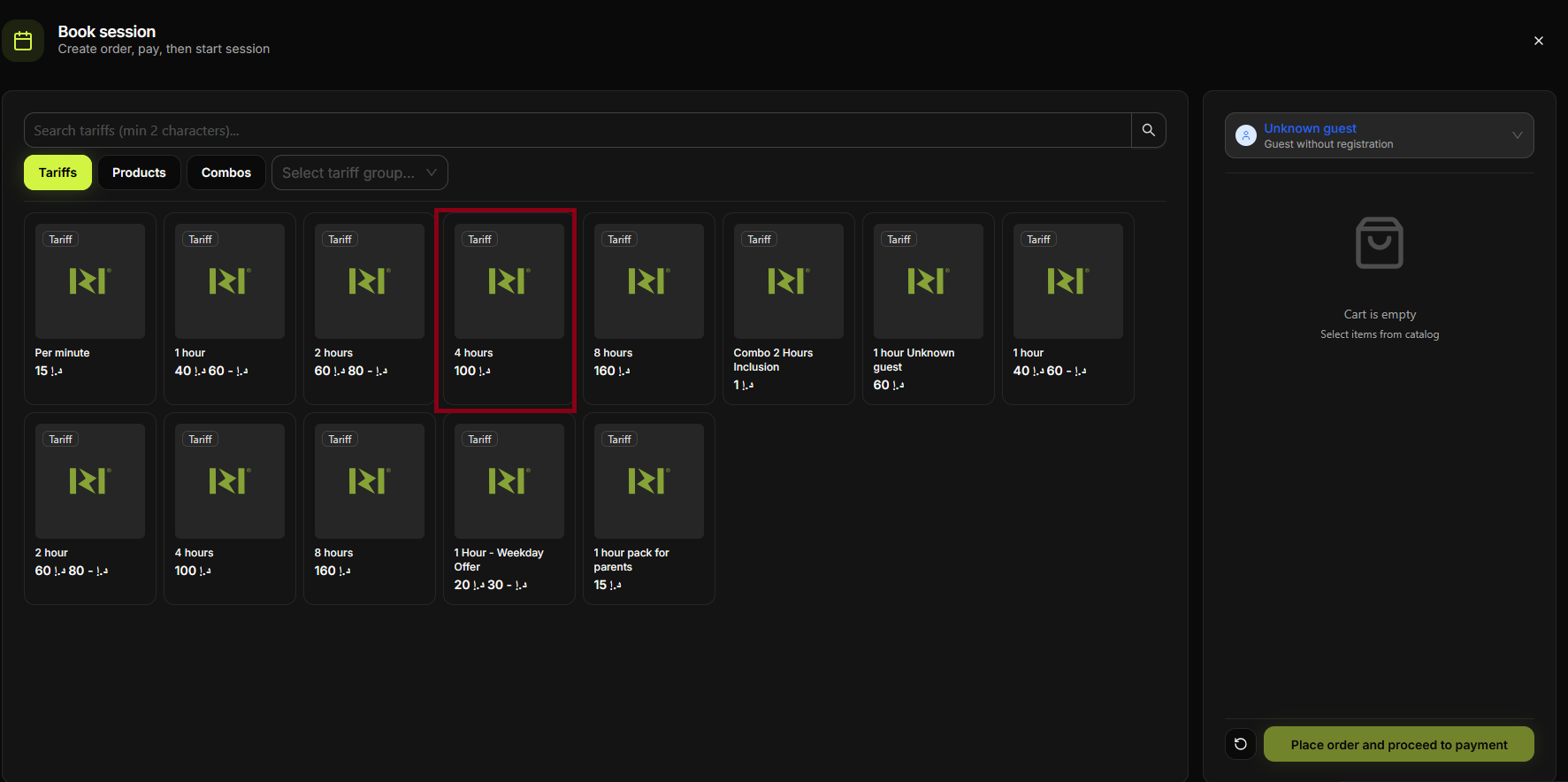
Step 9
Transaction or session record is updated. No additional payment—session was already paid.
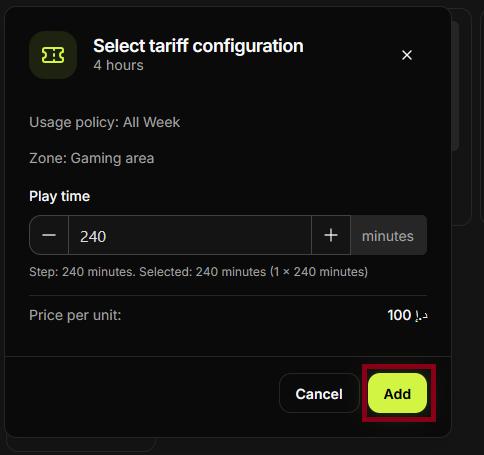
Step 10
Client can extend the session later via "Extend current session" if needed.
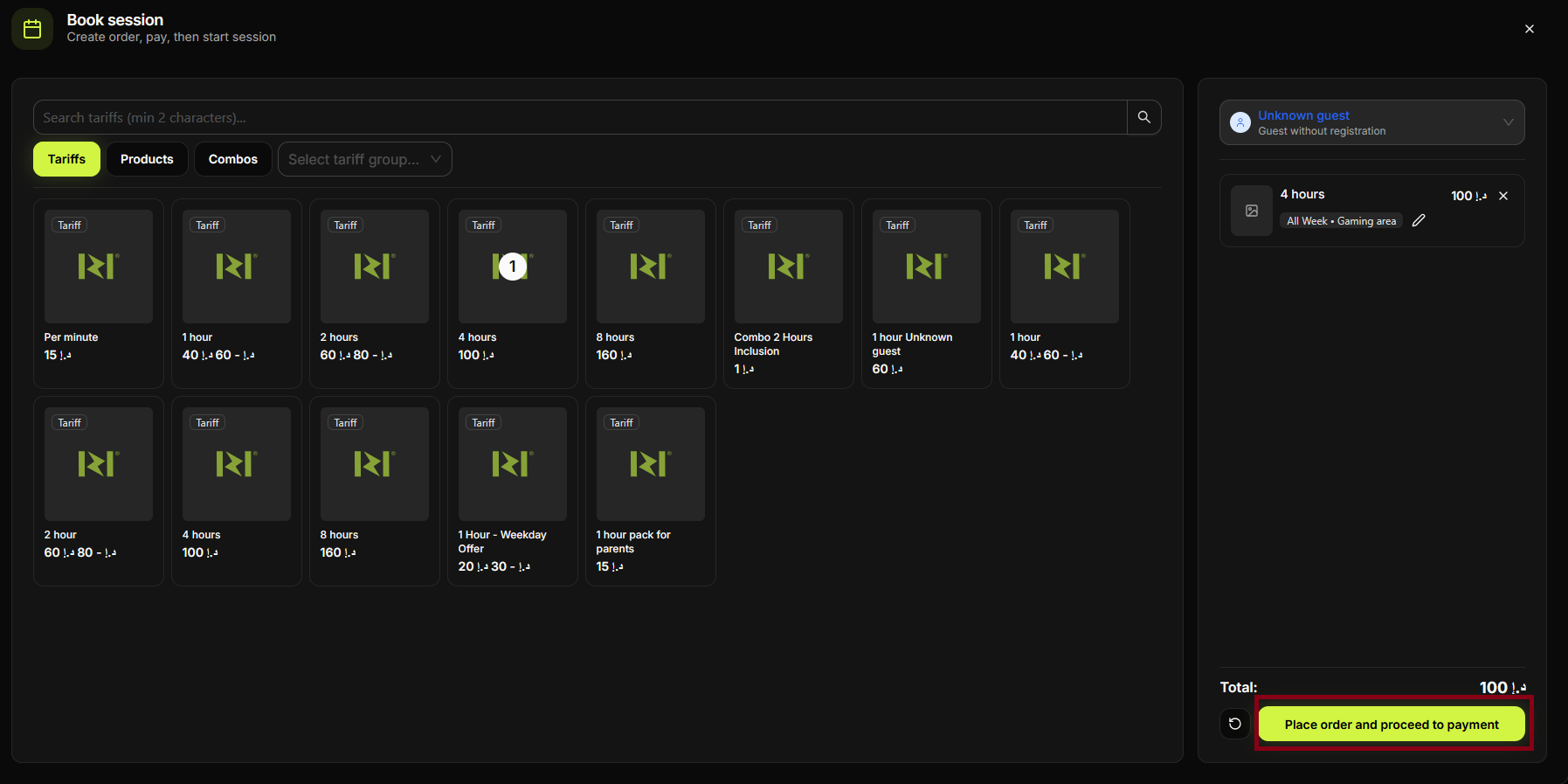
Step 11
When time runs out, the session ends automatically (or staff can end it manually).
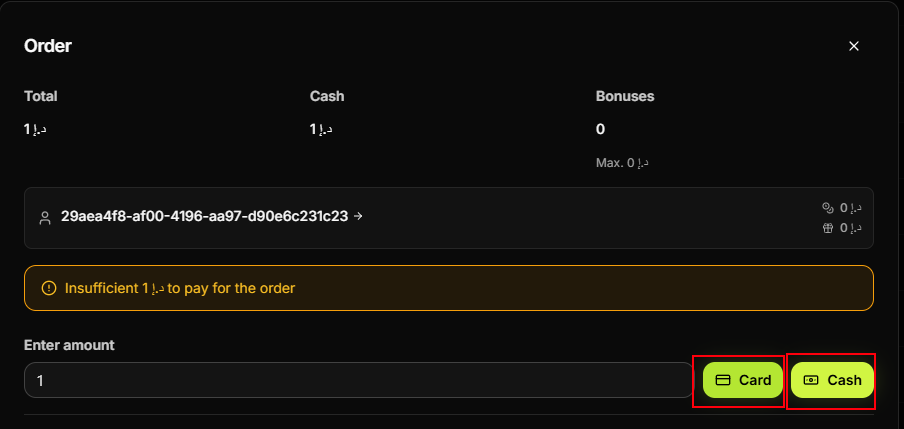
Step 12
Device becomes free again. You can book a new session for it.

Step 13
Process complete. Starting a Wait session is done when the client arrives or at the booked time.
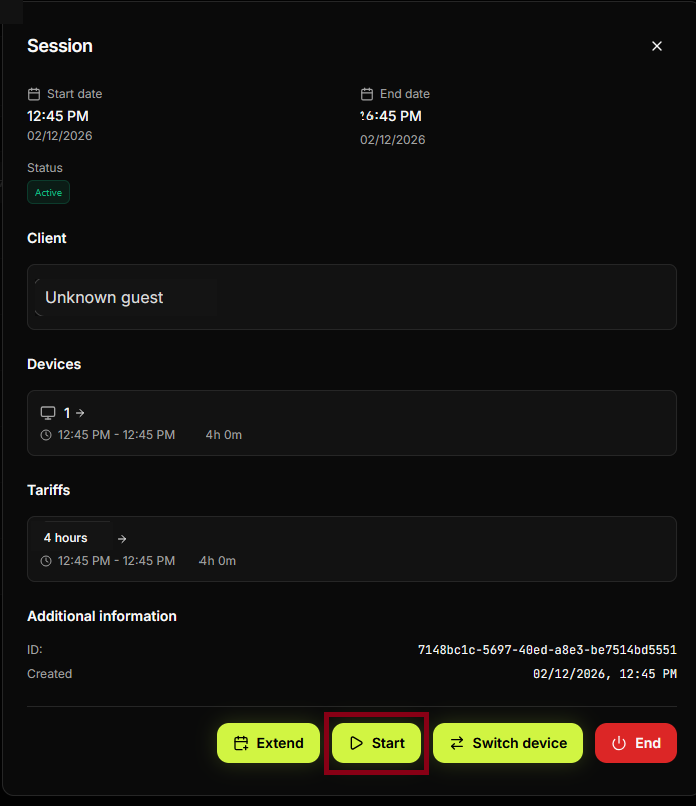
Summary
Start session = turn a Wait (scheduled) session into Active. Use when the client is at the PC and you want to start their pre-paid time. Flow: Hall → find Wait session → Start session → confirm.
Common situations
| No Start button | Ensure the session is in Wait status and the start time has come (or your system allows early start). |
| Wrong device | Use "Transfer user" to move the session to the correct PC after starting, or cancel and rebook. |