Transfer user to another PC
Move a client from one device to another (e.g. from a faulty PC to a free one). The session and remaining time are transferred to the new device.
Step 1
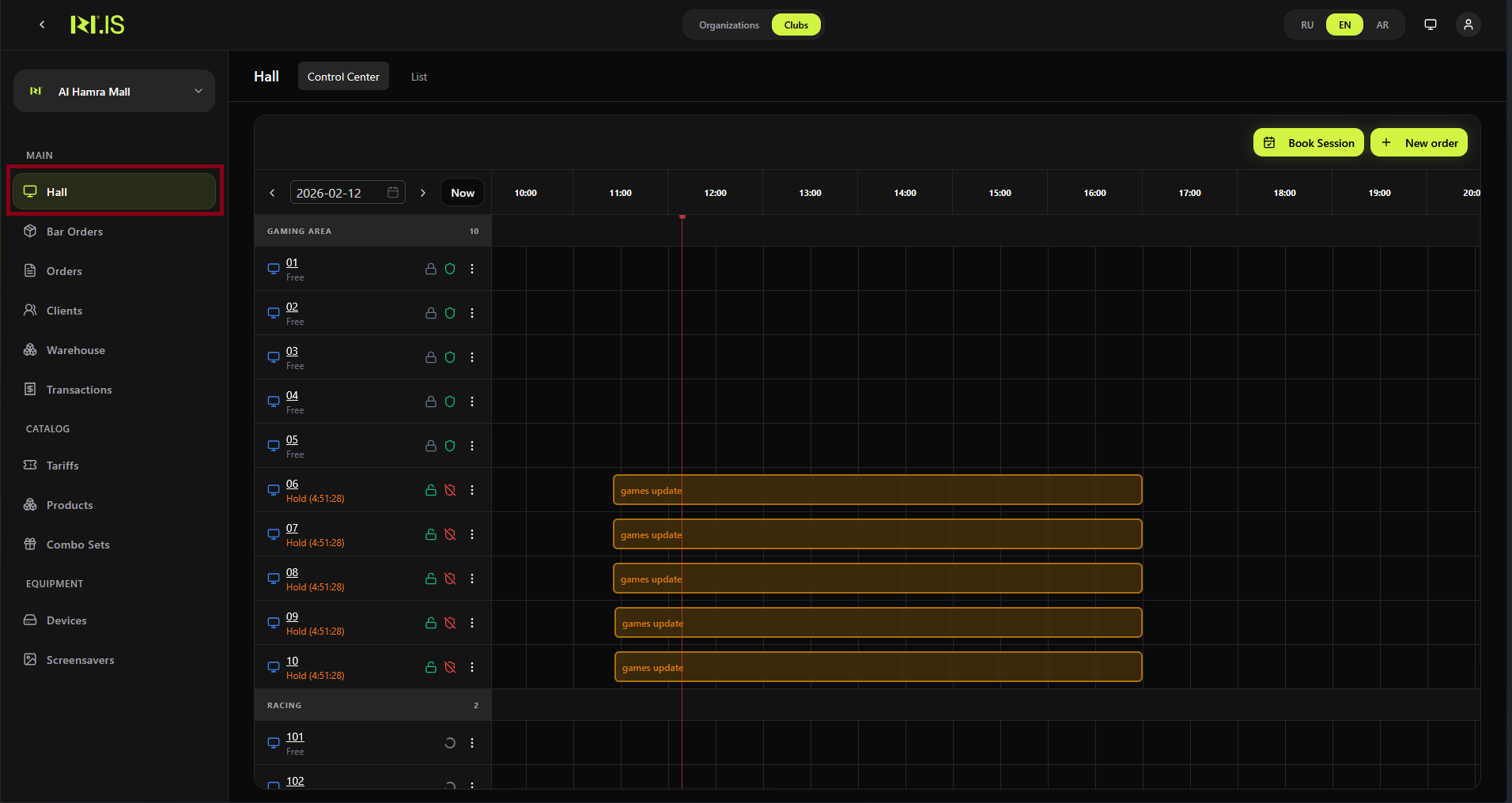
Open Hall (or Control Center). Find the device where the client is currently seated and the session is active.
Step 2
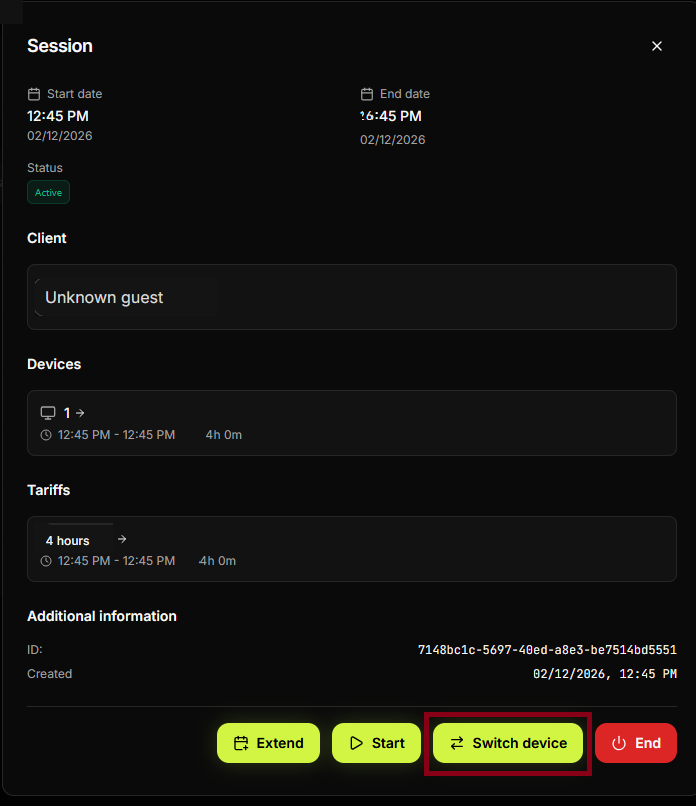
Open the session or device menu. Select the action to Transfer (or "Move to another PC" / "Transfer user").

Step 3
Select the target device (a free PC). Confirm the transfer. The session ends on the old device and continues on the new one with the same remaining time.
Summary
Transfer = move active session to another PC. Flow: Hall → current device/session → Transfer → choose new device → confirm.
Common situations
| Target PC not free | Choose another free device or wait until one is free. |
| Remaining time lost | Transfer keeps the session and time; if something went wrong, contact support or check session history. |